
- Overview
- Getting Started
- Quick Start Guide
- Core Concepts
- Users
- Models
- Creating a Model
- Model Card
- Model Card
- Importing Model Card Text
- Comparing Model Cards
- Creating a Release
- Uploading Files
- Uploading Images
- Model Templating
- Data Cards
- Creating a Data Card
- Managing Data Cards
- Using a Model
- Browsing the Marketplace
- Requesting Access
- Using a Pushed Docker Image
- Downloading Files
- Reviews
- Understanding Reviews
- Reviewing
- Reviewing a Release
- Reviewing an Access Request
- Reviewing a Model Card Lifecycle
- Review Outcomes
- Security Scanning
- File Scanning
- Image Scanning
- Inferencing
- Creating an Inference Service
- Managing Inference Services
- Model Mirroring
- Creating a Mirrored Model
- Editing a Mirrored Model Card
- Untrusted Models
- Untrusted Models
- Deletion
- Deleting a File
- Deleting a Model
- Soft Deletion
- Bailo Metrics
- Viewing Bailo Metrics
- Programmatic Access
- Authentication
- Personal Access Tokens
- Python Client
- OpenAPI Reference
- Webhooks
- Administration
- Getting Started
- Deployment Architecture
- App Configuration
- Model Lifecycle Configuration
- LLM
- LLM Import
- Schemas
- Understanding Schemas
- Create a Schema
- Upload a Schema
- Schema Migrations
- Review Roles
- Managing Review Roles
- Assigning Roles to Schemas
- Federation
- Peer Integration
- Microservices
- Artefact Scanners
- Helm
- Basic Usage
- Configuration
- Isolated Environments
- Migrations
- Bailo v0.4
- Bailo v2.0
- DataBase Scripts
- Reference
- Glossary
- Roles & Permissions
- Troubleshooting & FAQ
Comparing Model Cards
Common questions this page answers:
- How do I compare two versions of a model card?
- Can I compare model cards from different models?
- How do I read the highlighted changes on the comparison page?
Model card comparison allows you to review the differences between two versions of a model card. You can compare versions from the same model or select model cards from different models.
This is useful when reviewing changes to model documentation, checking how models differ, or verifying that updates have been recorded correctly.
See Filling In the Model Card for how to edit a model card, and for how to view a single earlier version.
Selecting model cards to compare
If you want to see what changed between two versions, select them for comparison:
- Open the model card history dialog, or go directly to the model card comparison page
- Tick the Compare checkbox for the two versions you wish to compare
- Select Compare revisions
The older version is always used as the From card and the newer version as the To card.
Each comparison also has its own unique URL, which records the selected models and versions. You can share this URL so that others see the same comparison.
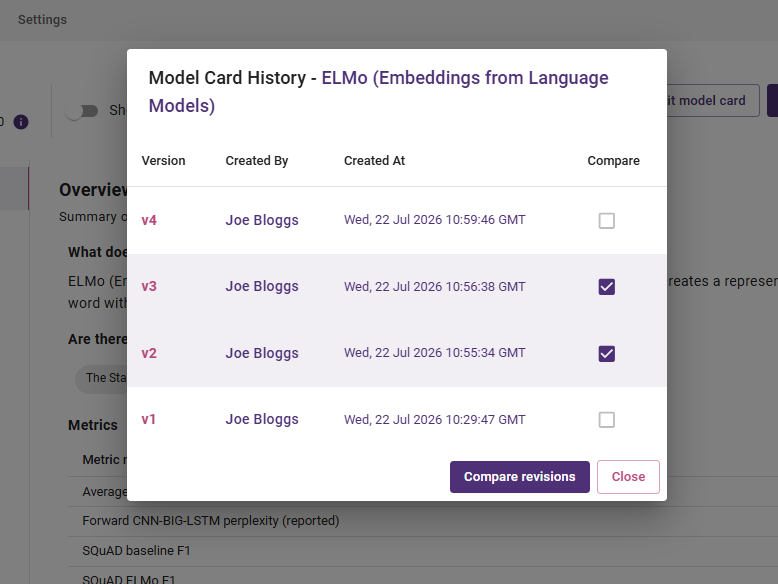
The screenshot above shows two model card versions selected for comparison.
Comparing model cards
After selecting two model cards, the comparison page displays a single copy of the model card with the differences between the selected cards highlighted inline. Each answer shows what changed from the From card to the To card.
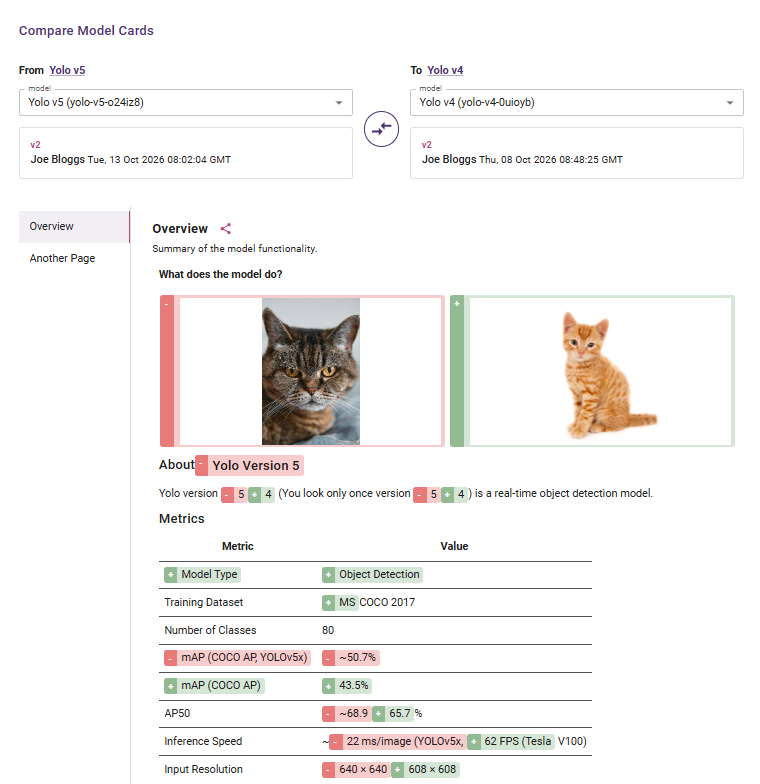
The screenshot above shows the model card comparison page, where the selected model cards are displayed.
Reading the differences
The comparison page marks changes in each answer:
- + with a green highlight - content that appears in the To card but not the From card
- - with a red highlight - content that appears in the From card but not the To card
- No highlight - content that is the same in both cards
- Unanswered inside a change - the question had no answer in that card
- Unanswered without a highlight - the question has no answer in either card
How a change is shown depends on the type of answer:
- Text answers - only the words that changed are highlighted, so you can see small edits within a longer answer
- Rich text answers - formatting such as headings, lists, tables and links is kept, and the changed parts are highlighted within it
- Images - a changed item is shown in full, with the old version marked - and the new version marked +, each inside a coloured frame
- Performance metrics - changes to metric names and values are highlighted row by row, and metrics that were removed are still listed so that you can see what was taken out
- Other answers - dates, selections, tags and users are compared as text
Comparing versions of the same model
When comparing versions of the same model, you can review how the model card has changed over time.
For example, you might compare:
- The current version with an earlier version
- A version before and after a model lifecycle status update
- Two versions created during a review
- A released model card with its latest draft
Comparing versions helps you understand what information was added, updated, or removed between those versions.
Comparing cards from different models
Model card comparison also allows you to select cards from different models. This can help you review the documentation for related or alternative models.
When comparing different models, consider whether:
- The models use the same model card schema
- The fields contain equivalent information
- The models have different intended uses or limitations
- Differences are caused by the models themselves or by the information recorded in their cards
The comparison shows the information recorded in each selected model card. It does not indicate that one model is better or more suitable than the other.
Mirrored models
Mirrored model cards can also be included in model card comparisons. A mirrored model is a copy of a model from another Bailo instance, with a read-only source card and an editable local card.
When comparing a mirrored model with a non-mirrored model, Bailo compares:
- The read-only source card from the mirrored model
- The editable local card from the non-mirrored model
Locally added information on the mirrored model is not used as the primary card in this comparison. The revision selector therefore shows source-card revisions for the mirrored model and local-card revisions for the non-mirrored model.
This behaviour is based on the model type rather than its position in the comparison. Swapping the From and To models does not change which card is used. The mirrored source content remains read-only and is not overwritten or changed by the comparison.
Related pages
- Model Card - Filling in the model card, configuring access, and viewing version history
- Reviewing a Model Card Lifecycle - Completing and updating model card lifecycle reviews
- Editing a Mirrored Model Card - Editing additional information on mirrored model cards
Copyright © Crown Copyright 2026.