
- Overview
- Getting Started
- Quick Start Guide
- Core Concepts
- Users
- Models
- Creating a Model
- Model Card
- Model Card
- Importing Model Card Text
- Comparing Model Cards
- Creating a Release
- Uploading Files
- Uploading Images
- Model Templating
- Data Cards
- Creating a Data Card
- Managing Data Cards
- Using a Model
- Browsing the Marketplace
- Requesting Access
- Using a Pushed Docker Image
- Downloading Files
- Reviews
- Understanding Reviews
- Reviewing
- Reviewing a Release
- Reviewing an Access Request
- Reviewing a Model Card Lifecycle
- Review Outcomes
- Security Scanning
- File Scanning
- Image Scanning
- Inferencing
- Creating an Inference Service
- Managing Inference Services
- Model Mirroring
- Creating a Mirrored Model
- Editing a Mirrored Model Card
- Untrusted Models
- Untrusted Models
- Deletion
- Deleting a File
- Deleting a Model
- Soft Deletion
- Bailo Metrics
- Viewing Bailo Metrics
- Programmatic Access
- Authentication
- Personal Access Tokens
- Python Client
- OpenAPI Reference
- Webhooks
- Administration
- Getting Started
- Deployment Architecture
- App Configuration
- Model Lifecycle Configuration
- LLM
- LLM Import
- Schemas
- Understanding Schemas
- Create a Schema
- Upload a Schema
- Schema Migrations
- Review Roles
- Managing Review Roles
- Assigning Roles to Schemas
- Federation
- Peer Integration
- Microservices
- Artefact Scanners
- Helm
- Basic Usage
- Configuration
- Isolated Environments
- Migrations
- Bailo v0.4
- Bailo v2.0
- DataBase Scripts
- Reference
- Glossary
- Roles & Permissions
- Troubleshooting & FAQ
Creating a Model
This guide walks you through creating a new model in Bailo, from the initial setup through to selecting a schema and filling in the model card.
Common questions this page answers:
- How do I create a new model in Bailo?
- What entry types are available?
- How do I choose between public and private visibility?
Choosing an entry type
Bailo supports four entry types. Select the one that matches your use case.
Click the + Create button in the navigation bar. You'll see the available entry types:
- Model - A standard machine learning model with full lifecycle management
- Mirrored Model - A read-only copy of a model from an external source (see Model Mirroring)
- Untrusted Model - A model requiring additional scrutiny (if enabled - see Untrusted Models)
- Data Card - Documentation for a dataset (see Creating a Data Card)
Select Model to create a standard model.
Basic details
Every model requires a name, description, and visibility setting:
- Name - a clear, descriptive name for your model
- Description - what the model does and its intended use
- Visibility - choose Public (visible in the Marketplace) or Private (visible only to collaborators)
Public models are visible to all users. Private models are only visible to users with the appropriate permissions, configured in the model settings.
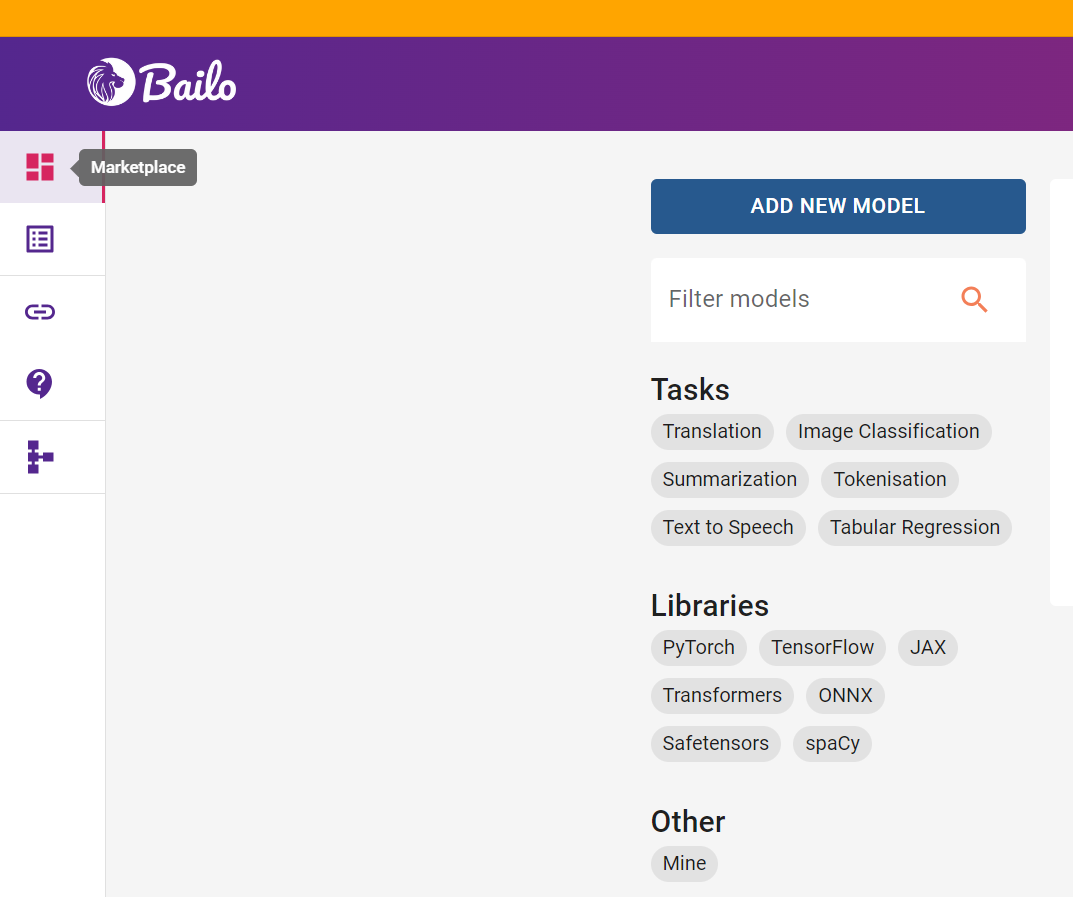
The screenshot above shows the marketplace with the model creation button.
Selecting a schema
The schema determines the structure of your model card - the questions you will answer about your model.
After creating the model, you must select a schema. You have two options:
- Create from schema - select a schema from the available list and start with a blank form
- Create from template - copy the model card structure and content from an existing model (see Model Templating)
The model card captures important information such as:
- Intended use
- Training and evaluation details
- Performance metrics
- Known limitations or biases
Next steps
After creating a model and selecting a schema:
- Fill in the model card - document your model
- Upload files - add model artefacts
- Create a release - version your model for distribution
Changing the model name or description
To update the model name or description after creation:
- Open the model
- Navigate to Settings
- Edit the Name and/or Description fields
Related pages
- Model Card - Filling in the model card and configuring access
- Core Concepts - Understanding the Bailo data model
- Python Client - Creating models programmatically
Copyright © Crown Copyright 2026.