
- Overview
- Getting Started
- Quick Start Guide
- Core Concepts
- Users
- Models
- Creating a Model
- Model Card
- Model Card
- Importing Model Card Text
- Comparing Model Cards
- Creating a Release
- Uploading Files
- Uploading Images
- Model Templating
- Data Cards
- Creating a Data Card
- Managing Data Cards
- Using a Model
- Browsing the Marketplace
- Requesting Access
- Using a Pushed Docker Image
- Downloading Files
- Reviews
- Understanding Reviews
- Reviewing
- Reviewing a Release
- Reviewing an Access Request
- Reviewing a Model Card Lifecycle
- Review Outcomes
- Security Scanning
- File Scanning
- Image Scanning
- Inferencing
- Creating an Inference Service
- Managing Inference Services
- Model Mirroring
- Creating a Mirrored Model
- Editing a Mirrored Model Card
- Untrusted Models
- Untrusted Models
- Deletion
- Deleting a File
- Deleting a Model
- Soft Deletion
- Bailo Metrics
- Viewing Bailo Metrics
- Programmatic Access
- Authentication
- Personal Access Tokens
- Python Client
- OpenAPI Reference
- Webhooks
- Administration
- Getting Started
- Deployment Architecture
- App Configuration
- Model Lifecycle Configuration
- LLM
- LLM Import
- Schemas
- Understanding Schemas
- Create a Schema
- Upload a Schema
- Schema Migrations
- Review Roles
- Managing Review Roles
- Assigning Roles to Schemas
- Federation
- Peer Integration
- Microservices
- Artefact Scanners
- Helm
- Basic Usage
- Configuration
- Isolated Environments
- Migrations
- Bailo v0.4
- Bailo v2.0
- DataBase Scripts
- Reference
- Glossary
- Roles & Permissions
- Troubleshooting & FAQ
Creating a mirrored model
Common questions this page answers:
- How do I create a mirrored model in Bailo?
- What is model mirroring?
- How do I synchronise a mirrored model with its source?
What is model mirroring?
Model mirroring allows you to create a read-only copy of an existing model that is manually synchronised from an external source. The source model may exist:
- In another Bailo instance owned by the same organisation, or
- In an external system that supports Bailo model exports
The mirrored model uses the source model as the single source of truth. Core model information is kept in sync and cannot be edited locally. This ensures consistency while still allowing controlled reuse of model metadata. You may optionally add additional local context to a mirrored model without modifying the source model.
How to create a mirrored model
Create a mirrored model from the model creation page if mirroring is enabled for your Bailo instance:
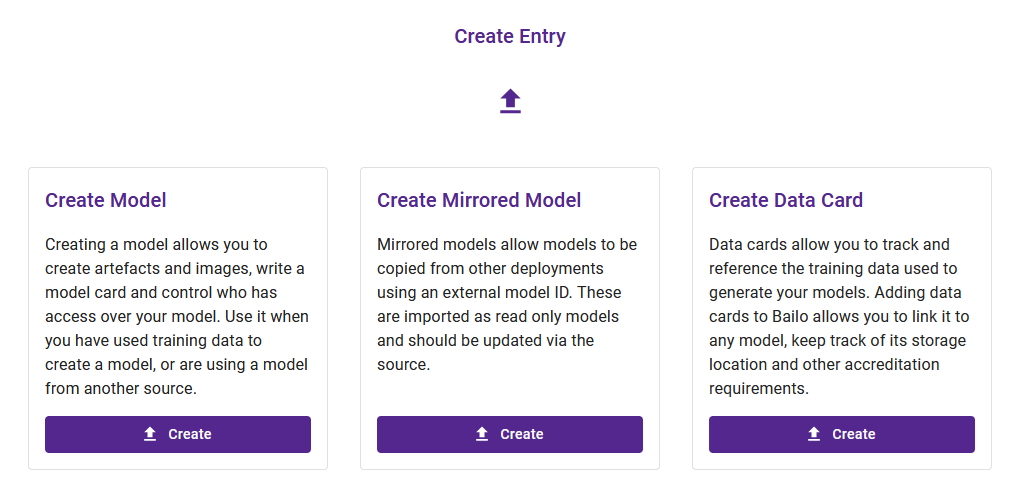
The screenshot above shows the model creation page with the Mirrored Model option available.
- Select Create mirrored model
- Provide the basic model details as prompted
- Enter the Source Model ID of the model you want to mirror
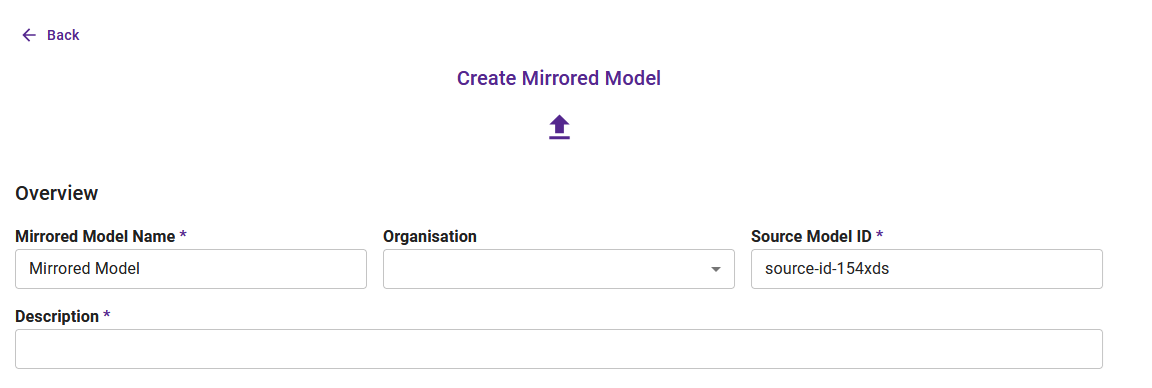
The screenshot above shows the mirrored model creation form with fields for basic details and the Source Model ID.
The Source Model ID must exactly match the ID of the source model. This is used to establish the synchronisation link.
Changing the source model ID
If you entered an incorrect Source Model ID during creation, you can update it directly from the model page before the first import has been performed.
- Navigate to your mirrored model
- In the info banner at the top of the page, click the edit icon next to the Source Model ID
- Enter the corrected Source Model ID and confirm
Once the source model has been exported and the mirrored model has received its first import, the Source Model ID is locked and can no longer be changed. Hovering over the Source Model ID displays a message explaining that editing is no longer available.
Exporting the source model
After creating the mirrored model, the source model must be exported so that its content can be synchronised. From the source model:
- Open the model settings
- Configure export options as required
- Export the model
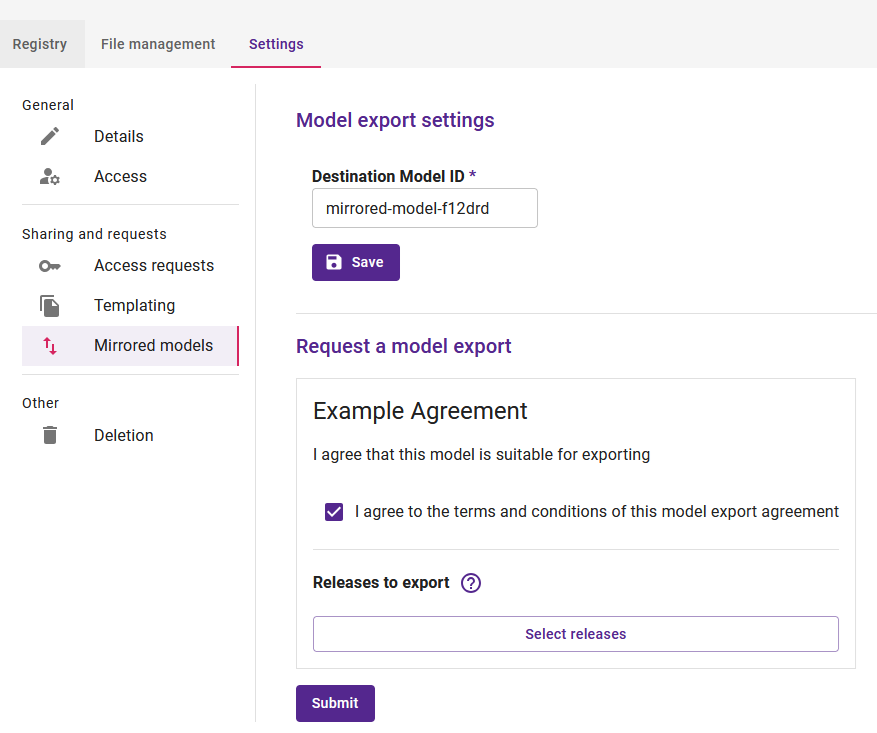
The screenshot above shows the source model's export settings used to synchronise the mirrored copy.
Once exported, the mirrored model will be populated with the source model's data and kept in sync on subsequent exports.
Copyright © Crown Copyright 2026.