- Overview
- Getting Started
- Quick Start Guide
- Core Concepts
- Users
- Models
- Creating a Model
- Model Card
- Model Card
- Importing Model Card Text
- Comparing Model Cards
- Creating a Release
- Uploading Files
- Uploading Images
- Model Templating
- Data Cards
- Creating a Data Card
- Managing Data Cards
- Using a Model
- Browsing the Marketplace
- Requesting Access
- Using a Pushed Docker Image
- Downloading Files
- Reviews
- Understanding Reviews
- Reviewing
- Reviewing a Release
- Reviewing an Access Request
- Reviewing a Model Card Lifecycle
- Review Outcomes
- Security Scanning
- File Scanning
- Image Scanning
- Inferencing
- Creating an Inference Service
- Managing Inference Services
- Model Mirroring
- Creating a Mirrored Model
- Editing a Mirrored Model Card
- Untrusted Models
- Untrusted Models
- Deletion
- Deleting a File
- Deleting a Model
- Soft Deletion
- Bailo Metrics
- Viewing Bailo Metrics
- Programmatic Access
- Authentication
- Personal Access Tokens
- Python Client
- OpenAPI Reference
- Webhooks
- Administration
- Getting Started
- Deployment Architecture
- App Configuration
- Model Lifecycle Configuration
- LLM
- LLM Import
- Schemas
- Understanding Schemas
- Create a Schema
- Upload a Schema
- Schema Migrations
- Review Roles
- Managing Review Roles
- Assigning Roles to Schemas
- Federation
- Peer Integration
- Microservices
- Artefact Scanners
- Helm
- Basic Usage
- Configuration
- Isolated Environments
- Migrations
- Bailo v0.4
- Bailo v2.0
- DataBase Scripts
- Reference
- Glossary
- Roles & Permissions
- Troubleshooting & FAQ
Deleting a file
Common questions this page answers:
- How do I delete a file from a model?
- What happens when I delete a file?
- Can I recover a deleted file?
Files uploaded to a model can be deleted by authorised users. Deleting a file removes it from use across the model, including any associated Releases.
Who can delete a file
You must have permission to edit the model. If you lack authorisation, the delete option will not be available.
What happens when a file is deleted
Deleting a file will:
- Remove the file from the model, so it can no longer be downloaded
- Remove the file from all associated releases
- Remove related scan and artefact metadata
Releases remain, but will no longer reference the deleted file.
How to delete a file
Delete a file from the File Management tab using the file actions menu:
- Open the model
- Navigate to the Files tab
- Locate the file you want to delete
- Open the file actions menu (⋮)
- Select Delete File

The screenshot above shows the file actions menu with a Delete File option.
Confirming deletion
A confirmation dialog lists affected releases before the file is permanently removed:
- If the file is used by releases, those releases are listed
- You must explicitly confirm to proceed
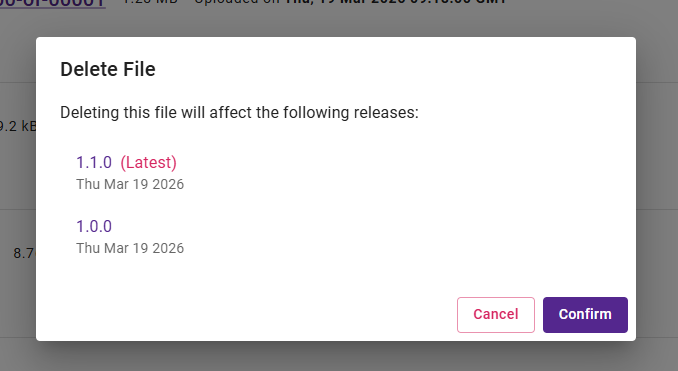
The screenshot above shows the delete confirmation dialog listing releases that reference the file.
If an error occurs (for example, insufficient permissions), an error message will be displayed and the file will not be deleted.
After deletion
- The file is immediately removed from the model
- Associated releases are updated automatically
- The files list refreshes to reflect the change
About recovery
File deletion is intended to be final, with only rare administrator recovery possible.
In exceptional circumstances, platform administrators may be able to restore a deleted file. This is not a standard service and users should only request recovery if absolutely required.
Before deleting a file, ensure it is no longer required by any releases or users.
See Soft Deletion for more detail.
Copyright © Crown Copyright 2026.