Joins
A join adds the rows of another data source, the joined source, to the rows of a
StroomQl
StroomQl
Any data source can be joined to any other, e.g. an index to a Data Connection, or an index to itself.
Join lines go straight after from:
from "Windows events"
left join "HR Users" as hr on UserId = hr.Username
select UserId, hr.Department
The joined source is searched first and held. The first source is then searched as usual, and each of its rows is joined as it arrives, so results appear as the search runs, as they do without a join.
For the full grammar, see StroomQL Grammar.
Kinds of Join
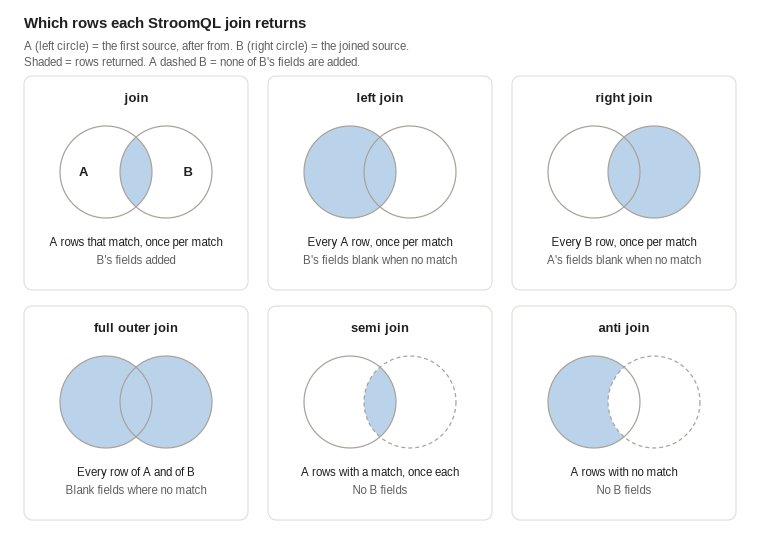
| Join | Also written | Rows given | Joined fields |
|---|---|---|---|
join |
inner join |
One row per match; rows with no match are dropped. | Added. |
left join |
left outer join |
One row per match; rows with no match are kept. | Added, blank when there is no match. |
right join |
right outer join |
One row per match; rows of the joined source with no match are kept. | Added; the first source’s fields are blank when there is no match. |
full join |
full outer join |
One row per match; rows of either source with no match are kept. | Added, blank where there is no match. |
semi join |
left semi join, where exists, where ... in |
Each row with at least one match, once. | None. |
anti join |
left anti join, where not exists, where ... not in |
Each row with no match. | None. |
A join and a semi join give the same rows, but a semi join adds no fields and never repeats a row, so use it to keep only the rows that have a match.
Examples
The examples below use the People and Teams CSV Data Connections from the Example Pack, where each example is also a query.
People:
| name | team | started |
|---|---|---|
| Alice | Platform | 2025-01-13 |
| Ben | Data | 2026-04-03 |
| Chloe | Security | 2025-09-01 |
| Dev | Analysis | 2026-05-25 |
| Ella | Platform | 2024-06-17 |
| Femi | Design | 2026-02-09 |
| Gus | Support | 2025-11-03 |
Teams:
| team | members | founded | on_call |
|---|---|---|---|
| Platform | 6 | 2019-03-01 | true |
| Data | 4 | 2021-07-15 | false |
| Security | 5 | 2020-11-02 | true |
| Analysis | 8 | 2018-05-20 | false |
| Support | 3 | 2024-01-08 | true |
| Research | 2 | 2022-02-14 | false |
Femi’s team, Design, is not in Teams, and no one in People is in Research.
Note
The query’s time range applies to joined sources too.
Teams has founded as its time field, and Bank Holidays has date, so run these examples over a time range that includes those dates, or Teams and Bank Holidays will have no rows to join.
Adding Fields from Another Source
A left join gives every person, with their team’s fields:
from People
left join Teams as t on team = t.team
sort by name
select name, team, t.members as members, t.on_call as on_call
| name | team | members | on_call |
|---|---|---|---|
| Alice | Platform | 6 | true |
| Ben | Data | 4 | false |
| Chloe | Security | 5 | true |
| Dev | Analysis | 8 | false |
| Ella | Platform | 6 | true |
| Femi | Design | ||
| Gus | Support | 3 | true |
The joined fields are named with the alias, as in t.members.
The alias is the name after as, or the data source’s name if there is none.
If that name has spaces, write its fields in braces, e.g. ${HR Users.Department}.
A plain join would give the same rows without Femi, who has no match.
Keeping Rows with or without a Match
A semi join keeps each person whose team is on call, without adding the team’s fields:
from People
semi join Teams as t on team = t.team
where t.on_call = true
sort by name
select name, team
This gives Alice, Chloe, Ella and Gus.
An anti join gives the opposite: each row with no match.
It is useful for finding rows that refer to something that doesn’t exist:
from People
anti join Teams as t on team = t.team
select name, team
This gives Femi.
Exists and In
where exists, where not exists, where ... in and where ... not in are the SQL ways of writing semi and anti joins, and run as them.
This query gives the same rows as the semi join above:
from People as p
where exists (from Teams as t where t.team = p.team and t.on_call = true)
sort by name
select name, team
The bracketed query names the first source’s fields by its alias, here p, or by its data source’s name if it has no alias, and compares them using =.
Its other conditions, here t.on_call = true, narrow its own search.
in compares a field with the one field the bracketed query selects:
from People
where team in (from Teams select team)
sort by name
select name, team
These forms can only be used at the top level of where, joined to its other conditions by and.
Note
A blank key never matches, so not in keeps a row whose field is blank, and a blank value in the other source doesn’t stop any row from being kept.
This differs from SQL, where not in gives no rows once the other query holds a null.
Right and Full Joins
A right join gives every row of the joined source: here, every team, with a row for each person in it.
from People
right join Teams as t on team = t.team
sort by t.team, name
select t.team as team, name
Research is given once, with a blank name, as no one is in it. Femi is not given, as Design is not in Teams.
A full outer join gives every row of both:
from People
full outer join Teams as t on team = t.team
sort by t.team, name
select name, team, t.team as listed_team, t.members as members
This gives a row for each person in a team, Femi with blank team fields, and Research with a blank name.
The rows of the joined source with no match, such as Research, are only known once the first source has been searched, so they are given last. A right or full join must be the last join line.
Joining a Bracketed Query
Either source can be a bracketed query, such as a grouped summary. This compares each team’s stated size with the number of people listed in it:
from Teams
join (
  from People
  group by team
  select team, count() as listed
) as p on team = p.team
sort by team
select team, members, p.listed as listed
A bracketed query in a join line needs an alias, here p.
A bracketed query in from must be searched before any of its rows can be joined, so its results don’t appear as the search runs.
All of the outer where is then tested on the joined rows, so to narrow a source’s search, put the condition inside a bracketed query for it.
A bracketed query can’t have joins, an alias or a bracketed query of its own.
Several Joins
A query can have several join lines. Each is joined in turn, and a later join’s keys can use an earlier join’s fields, e.g.
from "Windows events"
join "HR Users" as hr on UserId = hr.Username
left join "Cost Centres" as cc on hr.Department = cc.Department
select UserId, hr.Department, cc.CostCentre
Keys
A join can have several keys, joined by and, and either side of a key can be an expression:
from "Windows events"
join "HR Users" as hr on lowerCase(UserId) = hr.Username and Host = hr.Host
select UserId, Host, hr.Department
Keys match exactly, as text, so case matters.
Use a function such as lowerCase() on both sides to ignore case.
A blank key never matches.
Dates match exactly too, so they must be the same time, e.g. the same day with no time of day. The example pack joins the start dates in People to the dates in the Bank Holidays Excel Data Connection:
from People
join "Bank Holidays" as h on started = h.date
sort by started
select name, started, h.holiday as holiday
Joining Events Within a Time Window
A join can also match events to events that happen within a time window of them. This finds each logon that was followed by a file export by the same user within 10 minutes:
from "Windows events" as logon
join "File events" as export
  on logon.UserId = export.UserId
  within 10m after logon.EventTime
where logon.EventType = "Logon"
select logon.UserId, logon.EventTime, export.FileName
within 10m after matches joined events from the first source’s time to 10 minutes after it, and within 10m before matches those from 10 minutes before it to that time.
The joined event’s time is taken from its data source’s time field.
A join with a time window works the other way round from other joins.
The first source is searched first and held, with the same limits as a joined source, so keep it small with where or a short time range.
The joined source is then searched only within the windows of its rows, and no more of its events than the row limit may fall within them.
The rows appear once both have been searched.
A query with a time window can have only one join line, and both sources must be data sources, not bracketed queries.
Where
where can name joined fields as well as those of the first source.
Stroom splits it at its top level and:
- Conditions on the first source’s fields narrow the first source’s search, as without a join.
- Conditions on only one joined source’s fields narrow that source’s search, for a
joinorsemi join. - Everything else, including an
orthat names fields of more than one source, is tested on the joined rows.
With a right or full join, where is tested on the joined rows, as in SQL, so it doesn’t narrow the first source’s search.
To narrow it, use a bracketed query in from.
When the first source is a bracketed query, all of where is tested on the joined rows.
The query’s time range applies to every source whose data source has a time field, including joined sources and bracketed queries.
A semi or anti join adds no fields, so its fields can only be used in its keys, or, for a semi join, in where conditions on only its fields.
To match only some rows of an anti join’s source, filter them in a bracketed query, e.g.
from People
anti join (from Teams where on_call = true select team) as t on team = t.team
select name, team
Performance and Limits
The joined source is held while the first source is searched, up to 1,000,000 rows or 256 MB.
With a time window, the first source is held instead, with the same limits.
A query that joins more fails, suggesting that the joined source is filtered or grouped.
Administrators can change these limits with the search.resultStore.joinMaxRows and search.resultStore.joinMaxSize properties.
To keep joins fast:
- Make the joined source small, by filtering it in
wherefor ajoinorsemi join, or by joining a bracketed query that filters or groups it. - Join a large source to a small one, not the other way round. Without a time window, the first source can be as large as any other search.
- Join on one plain field of the first source, such as
UserId, rather than an expression, where you can. Ajoin,semi joinorright joinwith one such key, on an ID, number, keyword or text field the first source can search, then also narrows the first source’s search to the joined source’s keys, if there are at most 1,000 of them and none has spaces, commas, quotes or wildcards. Ananti joindoes the same, leaving those keys out, on ID and whole-number fields.
Each source is searched as the user running the query, so a join never shows data the user could not otherwise see.
The hidden StreamId, EventId and AnnotationId fields come from the first source, so a joined row still opens and annotates the first source’s event.
Warnings
A query with a join may give these warnings with its results:
- A row matched many rows of a joined source, more than 1,000, so the result may be much bigger than expected. Check the keys of the join.
- A field that
wheretests after a right or full join had no value in any row of the first source. This happens when a data source can search a field but not give its value. Narrow the first source with a bracketed query infrominstead. - The rows of a right or full join with no match were left out, as the search didn’t finish.
Where Joins Can be Used
Joins can be used in a Query , in an Embedded Query panel on a Dashboard , and in scheduled analytic rules and reports.
Streaming and table builder analytic rules can’t use joins, an alias or a bracketed query in from, as they run on one event at a time as it is processed.
Use a scheduled query rule instead.