TODO
Complete this section.
This is the multi-page printable view of this section. Click here to print.
Stroom Query Language (StroomQL) is a text based replacement for the existing
Dashboard
Dashboard
A Dashboard is a configurable entity for querying one or more Data Sources and displaying the results as a table, a visualisation or some other form.Click to see more details... query builder and allows you to express the same queries in text form as well as providing additional functionality.
It is currently used on the Query entity as the means of defining a query.
The following shows the supported syntax for a StroomQL query.
from <DATA_SOURCE> [as <ALIAS>]
[sql] """<NATIVE_QUERY>"""
[join] <DATA_SOURCE> [as <ALIAS>] on <FIELD> = <ALIAS>.<FIELD> [and ...]
where <FIELD> <CONDITION> <VALUE> [and|or|not]
[and|or|not]
[window] <TIME_FIELD> by <WINDOW_SIZE> [advance <ADVANCE_SIZE>] [offset <OFFSET>]
[filter] <FIELD> <CONDITION> <VALUE> [and|or|not]
[and|or|not]
[eval...] <FIELD> = <EXPRESSION>
[having] <FIELD|EXPRESSION> <CONDITION> <VALUE|EXPRESSION> [and|or|not]
[group by] <FIELD>
[sort by] <FIELD> [desc|asc] // asc by default
[limit] <MAX_ROWS>
select <FIELD> [as <COLUMN NAME>], ...
[show as] <VIS_NAME> (<VIS_CONTROL_ID_1> = <COLUMN_1>, <VIS_CONTROL_ID_2> = <COLUMN_2>)
For the full grammar, see StroomQL Grammar.
Fields are the fields in a data source. Fields are case-sensitive.
If the field name contains white space then it must be surround by braces and preceded by a dollar sign, e.g ${Create Time}.
If the field name does not contain spaces it can be written with or without the braces, e.g. Status or ${Status}.
Fields can added to the query text in one of three ways:
Keywords are the reserved words that define the structure of the query, e.g. from, select, where.
Unlike fields, they are case-insensitive.
The first part of a StroomQL expression is the from clause that defines the single data source to query.
All queries must include the from clause.
Select the data source to query, e.g.
from my_source
If the name of the data source contains white space then it must be quoted using " double quotes, e.g.
from "my source"
Some data sources run a query of their own before Stroom works on the results: a Data Connection of type JDBC or Amazon Athena runs SQL, and one of type LDAP runs a search filter.
That query goes in a sql clause, straight after the data source it is for, e.g. after from:
from "Reports DB"
sql """
  select name, team, joined
  from staff
  where joined >= :from and joined < :to
"""
where team = "Platform"
sort by joined desc
select name, joined
The SQL or filter is a string, usually in triple double quotes (""").
A triple-quoted string is taken exactly as written: it can span several lines and hold " and \ without escaping, and it ends at the next """.
Its results become the rows that the rest of the query works on, so where, eval, group by and the other clauses work on them as on any other data source.
Named placeholders such as :team take the value of the query parameter of that name, and :from and :to take the ends of the query’s time range.
A data source that needs a sql clause refuses a query without one, and one that does not take one refuses a query with one.
A joined data source can have a sql clause too, straight after it in its join line, and a bracketed query has its own inside its brackets, straight after its from, e.g.
from "Windows events"
left join "Reports DB" as staff sql """
  select username, team
  from staff
""" on UserId = staff.username
select UserId, staff.team
Use join to join the rows of another data source to the rows of the query, straight after from, e.g.
from "Windows events"
left join "HR Users" as hr on UserId = hr.Username
select UserId, hr.Department
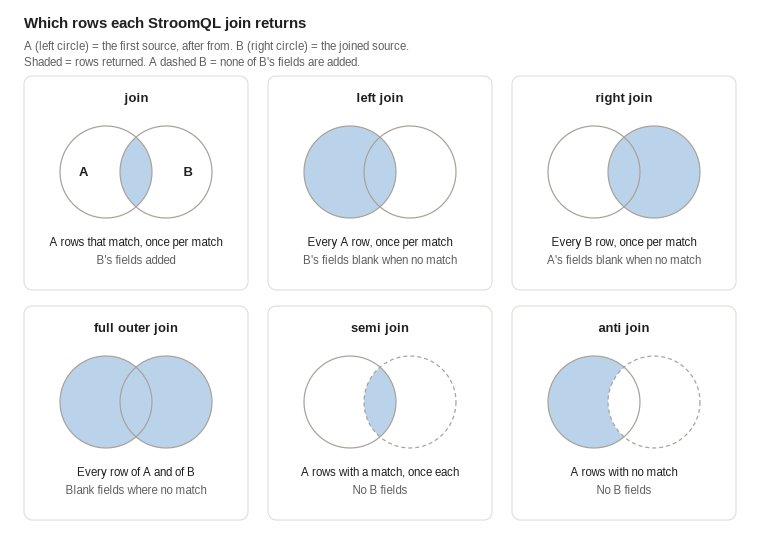
The kinds of join are join, left join, right join, full join, semi join and anti join.
The joined fields are named <alias>.<field>, e.g. hr.Department, where the alias is the name after as, or the data source’s name if there is none.
If that name has spaces, write its fields in braces, e.g. ${HR Users.Department}.
The joined source can also be a bracketed query, and a query can have several join lines.
See Joins for the kinds of join and examples.
Use on to give the keys of a join, whose values must be equal for rows to join, e.g.
on lowerCase(UserId) = hr.Username and Host = hr.Host
Keys match exactly, so case matters, and a blank key never matches.
An event-to-event join can also give a time window after its keys, e.g.
from "Windows events" as logon
join "File events" as export
  on logon.UserId = export.UserId
  within 10m after logon.EventTime
select logon.UserId, logon.EventTime, export.FileName
See Joining Events Within a Time Window.
Use where to construct query criteria, e.g.
where feed = "my feed"
Add boolean logic with and, or and not to build complex criteria, e.g.
where feed = "my feed"
or feed = "other feed"
Use brackets to group logical sub expressions, e.g.
where user = "bob"
and (feed = "my feed" or feed = "other feed")
Supported conditions are:
= - Equals.!= - Not equals.> - Greater than.>= - Greater than or equal to.< - Less than.<= - Less than or equal to.is null - The value is null.is not null - The value is not null.in - The value is in a list of allowed values.StreamId in (1001, 1002, 2009)Feed in ("FEED_X", "FEED_Y").in dictionary - The value is in a list of allowed values that are contained in a
Dictionary
.Feed in dictionary "My Dict" (using the dictionary’s unique name)Feed in dictionary "fb7a8cea-e6b4-4d94-8f7e-47ff3b3c7711" (using the dictionary’s
UUID
UUID
4ffeb895-53c9-40d6-bf33-3ef025401ad3.Logical operators to add to where and filter clauses.
You can force evaluation of items in a specific order using bracketed groups.
and X = 5 OR (name = foo and surname = bar)
Use exists to keep only the rows that have a match in another data source, or not exists to keep those with none, as in SQL, e.g.
from People as p
where exists (from Teams as t where t.team = p.team and t.on_call = true)
select name, team
Use in or not in to compare a field with the one field another data source’s query selects, e.g.
from People
where team not in (from Teams select team)
select name, team
These are other ways of writing a semi join and an anti join, and run as them.
They can only be used at the top level of where, joined to its other conditions by and.
See Exists and In.
window <TIME_FIELD> by <WINDOW_SIZE> [advance <ADVANCE_SIZE>] [offset <OFFSET>]
Use window to put rows into windows of time and to group them by the window they are in, e.g.
from "File events"
window EventTime by 1d
group by UserId
select windowStart() as Day, UserId, count() as Events
This gives a row for each user for each day.
Rows are grouped by their window as well as by the group by columns.
No columns are added to the table, so select windowStart() or windowEnd() to show the times of a row’s window.
A window includes its start and not its end, so an event at midnight is in the day that starts then. The time field must hold a date and time. A field that the data source lists as some other type is refused. Rows with no time in the field are left out, and the search gives a warning that says how many.
A size is a number and a unit, e.g. 10m or 1d.
| Unit | Meaning |
|---|---|
ms |
Milliseconds |
s |
Seconds |
m |
Minutes |
h |
Hours |
d |
Days |
w |
Weeks |
M |
Months |
y |
Years |
Sizes in hours or less are fixed lengths of time, counted from midnight, so windows of 1h start on the hour and 24h is always 24 hours.
Sizes in days, weeks, months and years follow the calendar in the time zone of the query.
A window of 1d is 23 or 25 hours long when the clocks change, weeks start on Monday and months on the 1st.
An analytic rule that has no time zone uses UTC.
7d is not the same as 1w.
1w is the calendar week from Monday, whereas 7d is every seven days counted from 1 January 1970, which starts on Thursdays.
Add advance to make windows that overlap, e.g.
window EventTime by 1h advance 10m
A window of an hour then starts every 10 minutes, and each event is counted in every window that covers it, which is six windows here.
Without advance, each window starts where the one before it ends.
The size must be a whole number of advances. The advance can be in a smaller unit than the size where the units divide exactly, so a year can advance by months, a week by days or less and a day by hours or less. Months and years can’t advance by weeks, days or less.
Add offset to move where windows start, e.g.
window EventTime by 1d offset 6h
Each day then runs from 06:00 to 06:00.
Use a minus sign to move the start earlier, e.g. offset -2h.
advance and offset can be given in either order.
Use lag() and lead() to compare a window with an earlier or later one, e.g.
from "File events"
window EventTime by 1d
eval Change = count() - lag(count(), 1)
group by UserId
select windowStart() as Day, UserId, count() as Events, Change
lag(count(), 1) is the count of the window one size before, for the same user, and lead(count(), 1) is the count of the window one size after.
The other window is a number of sizes away, whatever the advance, so with by 1h advance 10m it is the window that starts an hour before.
What lag() and lead() give depends on the other window:
0 for count().Give a third value to use where there is no value, e.g. lag(count(), 1, 0).
A user with no events in a window still gets a row for that window if a window either side of it reads it, and the window is not before the first or after the last that has events.
In the example above, a user with events on Monday and none on Tuesday gets a row for Tuesday with Events of 0 and Change of minus Monday’s count, as long as another user has events on Tuesday or later.
To keep only the windows that have changed, compare them in having, e.g.
from "File events"
window EventTime by 1d
group by UserId
having count() > lag(count(), 1) * 2
select windowStart() as Day, UserId, count() as Events
lag() and lead().
A query that would add an event more than 100 times is refused.
Administrators set this limit with the search.resultStore.maxWindowCopiesPerEvent property.window can be used in a bracketed query and with a join, but not with a join within a time window.lag() and lead() can only be used in a query that has a window clause.Use filter to test values that where can’t, such as a field that has not been indexed or the result of an eval.
It is written the same way as the where clause, but is tested on each row after its values have been retrieved, rather than being part of the search, e.g.
from my_source
where feed = "my feed"
eval domain = substringAfter(user, "@")
filter obscure_field = "some value" and domain = "example.com"
select user, domain, obscure_field
where names fields of the data source, but filter names the columns of select, so a column must be selected to be filtered on.
If a column is renamed with as, filter uses the new name.
Add boolean logic with and, or and not to build complex criteria as supported by the where clause.
Use brackets to group logical sub expressions as supported by the where clause.
Text is compared without regard to case, and * and ? can be used as wildcards with = and !=.
where clause, however they allow filtering on fields that have not been indexed for some reason.
Frequent use of filter on a field suggests you may want to consider including that field in an index.
See Filter for the differences between where and filter in full.
Use eval to assign the value returned from an Expression Function to a named variable, e.g.
eval my_count = count()
Here the result of the count() function is being stored in a variable called my_count.
Functions can be nested and applied to variables, e.g.
eval new_name = concat(
  substring(name, 3, 5),
  substring(name, 8, 9))
Note that all fields in the data source selected using from will be available as variables by default.
Multiple eval statements can also be used to breakup complex function expressions and make it easier to comment out individual evaluations, e.g.
eval name_prefix = substring(name, 3, 5)
eval name_suffix = substring(name, 8, 9)
eval new_name = concat(
  name_prefix,
  name_suffix)
Variables can be reused, e.g.
eval name_prefix = substring(name, 3, 5)
eval new_name = substring(name, 8, 9)
eval new_name = concat(
  name_prefix,
  new_name)
In this example, the second assignment of new_name will override the value initially assigned to it.
Note that when reusing a variable name, the assignment can depend on the previous value assigned to that variable.
Add boolean logic with and, or and not to build complex criteria, e.g.
where feed = "my feed" or feed = "other feed"
Use brackets to group logical sub expressions, e.g.
where user = "bob" and (feed = "my feed" or feed = "other feed")
A post aggregate filter that is applied at query time to return only rows that match the having conditions.
A condition can test a column by its name, e.g.
having count > 3
A condition can also test an expression, so the value does not have to be a column, e.g.
having count() > 3 and max(Bytes) < 1000
Two expressions can be compared with =, !=, >, >=, < or <=, e.g.
having count() > lag(count(), 1) * 2
A single name on the right of a comparison is a column if an eval or select gives one of that name, and text if not.
A row is kept only if the comparison is true, so a row with nothing to compare with is left out.
With window, this means the first window that has events is left out of a comparison with lag().
To keep it, give lag() a value to use, e.g. lag(count(), 1, 0).
Use to group by columns, e.g.
group by feed
You can group across multiple columns, e.g.
group by feed, name
You can create nested groups, e.g.
group by feed
group by name
Use to sort by columns, e.g.
sort by feed
You can sort across multiple columns, e.g.
sort by feed, name
You can change the sort direction, e.g.
sort by feed asc
Or
sort by feed desc
Limit the number of results, e.g.
limit 10
The select keyword is used to define the fields that will be selected out of the data source (and any eval’d fields) for display in the table output.
select feed, name
You can optionally rename the fields so that they appear in the table with more human friendly names.
select feed as 'my feed column',
  name as 'my name column'
The show keyword is used to tell StroomQL how to show the data resulting from the select.
A Stroom visualisation can be specified and then passed column values from the select for the visualisation control properties.
show LineChart(x = EventTime, y = count)
show Doughnut(names = Feed, values = count)
For visualisations that contain spaces in their names it is necessary to use quotes, e.g.
show "My Visualisation" (x = EventTime, y = count)
StroomQL supports single line comments using //.
For example:
from "index_view" // view
where EventTime > now() - 1227d
// and StreamId = 1210
select StreamId as "Stream Id", EventTime as "Event Time"
Multiple lines can be commented by surrounding sections with /* and */.
For example:
from "index_view" // view
where EventTime > now() - 1227d
/*
eval FirstName = lowerCase(substringBefore(UserId, '.'))
eval FirstName = any(FirstName)
*/
select StreamId as "Stream Id", EventTime as "Event Time"
The following are various example queries.
// add a where
from "index_view" // view
where EventTime > now() - 1227d
// and StreamId = 1210
eval UserId = any(upperCase(UserId))
eval FirstName = lowerCase(substringBefore(UserId, '.'))
eval FirstName = any(FirstName)
eval Sl = stringLength(FirstName)
eval count = count()
group by StreamId
sort by Sl desc
limit 10
select Sl, StreamId as "Stream Id", EventId as "Event Id", EventTime as "Event Time", UserId as "User Id", FirstName, count
from "index_view" // view
// add a where
where EventTime > now() - 1227d
// and StreamId = 1210
eval UserId = any(upperCase(UserId))
eval FirstName = lowerCase(substringBefore(UserId, '.'))
eval FirstName = any(FirstName)
eval Sl = stringLength(FirstName)
// eval count = count()
// group by StreamId
// sort by Sl desc
// limit 10
select StreamId as "Stream Id", EventId as "Event Id"
from "index_view" // view
// add each user's department, keeping users not in the HR list
left join "HR Users" as hr on UserId = hr.Username
where EventTime > now() - 1227d
eval count = count()
group by UserId, hr.Department
sort by count desc
select UserId as "User Id", hr.Department as "Department", count
from "index_view" // view
// add a where
where EventTime > now() - 1227d
// and StreamId = 1210
eval UserId = any(upperCase(UserId))
eval FirstName = lowerCase(substringBefore(UserId, '.'))
eval FirstName = any(FirstName)
eval Sl = stringLength(FirstName)
eval count = count()
group by StreamId
sort by Sl desc
limit 10
select Sl, StreamId as "Stream Id", EventId as "Event Id", EventTime as "Event Time", UserId as "User Id", FirstName, count
The left hand pane of the Query editor provides help for building a StroomQL query. It contains the following items:
select.from ... clause has been added that uses a data source that supports Annotations, e.g. an Index.from ... clause has been added.in dictionary terms.Clicking on an item will show some detailed help about that item in the bottom of the pane.
Double clicking on the item will insert it into the query editor. It will be inserted with double quotes or braces as appropriate to the item being inserted.
The StroomQL editor benefits from code completion to speed up the writing of queries.
Pressing Ctrl ^ , Space ␣ in the query editor will bring up a context aware context menu listing items that can be inserted into the query, e.g. fields, functions, keywords, dictionaries, data sources, etc.
If you type some letters of the item you want, e.g. sub then
Ctrl ^
,
Space ␣
, it will bring up a list of items that contain the letters sub in that order, e.g. substring(..), isDouble(..), etc.
You can either use the cursor keys to scroll up/down the list or continue typing letters to further refine the filtering of the list. Hit Enter ↵ or Tab ↹ to insert the item into the editor.
The context menu also includes completion snippets.
The context menu also shows some more detailed help, e.g. to describe the argument to functions.
Expression Functions are inserted with tab stops to enable fast population of the function arguments. For example:
sub then hit
Ctrl ^
,
Space ␣
.substring(..) from the list and hit
Tab ↹
.substring(input, startIndex, endIndex) is inserted, with input highlighted.Feed to replace input with Feed, then hit
Tab ↹
.substring(Feed, startIndex, endIndex) is displayed, with startIndex highlighted.0 to replace startIndex with 0, then hit
Tab ↹
.substring(Feed, 0, endIndex) is displayed, with endIndex highlighted.5 to replace endIndex with 5, then hit
Tab ↹
.substring(Feed, 0, 5) is displayed, with the cursor now positioned after the closing bracket.A join adds the rows of another data source, the joined source, to the rows of a
StroomQl
StroomQl
Stroom Query Language is Stroom’s own query language. It has similarities with Structured Query Language (SQL) as used in databases. StroomQL is sometimes referred to as sQL to distinguish it from SQL.Click to see more details... query, matching them on keys.
For example, a join can add each user’s department from an HR list to their logon events, or find the logons of users who are not in the HR list at all.
Any data source can be joined to any other, e.g. an index to a Data Connection, or an index to itself.
Join lines go straight after from:
from "Windows events"
left join "HR Users" as hr on UserId = hr.Username
select UserId, hr.Department
The joined source is searched first and held. The first source is then searched as usual, and each of its rows is joined as it arrives, so results appear as the search runs, as they do without a join.
For the full grammar, see StroomQL Grammar.
| Join | Also written | Rows given | Joined fields |
|---|---|---|---|
join |
inner join |
One row per match; rows with no match are dropped. | Added. |
left join |
left outer join |
One row per match; rows with no match are kept. | Added, blank when there is no match. |
right join |
right outer join |
One row per match; rows of the joined source with no match are kept. | Added; the first source’s fields are blank when there is no match. |
full join |
full outer join |
One row per match; rows of either source with no match are kept. | Added, blank where there is no match. |
semi join |
left semi join, where exists, where ... in |
Each row with at least one match, once. | None. |
anti join |
left anti join, where not exists, where ... not in |
Each row with no match. | None. |
A join and a semi join give the same rows, but a semi join adds no fields and never repeats a row, so use it to keep only the rows that have a match.
The examples below use the People and Teams CSV Data Connections from the Example Pack, where each example is also a query.
People:
| name | team | started |
|---|---|---|
| Alice | Platform | 2025-01-13 |
| Ben | Data | 2026-04-03 |
| Chloe | Security | 2025-09-01 |
| Dev | Analysis | 2026-05-25 |
| Ella | Platform | 2024-06-17 |
| Femi | Design | 2026-02-09 |
| Gus | Support | 2025-11-03 |
Teams:
| team | members | founded | on_call |
|---|---|---|---|
| Platform | 6 | 2019-03-01 | true |
| Data | 4 | 2021-07-15 | false |
| Security | 5 | 2020-11-02 | true |
| Analysis | 8 | 2018-05-20 | false |
| Support | 3 | 2024-01-08 | true |
| Research | 2 | 2022-02-14 | false |
Femi’s team, Design, is not in Teams, and no one in People is in Research.
The query’s time range applies to joined sources too.
Teams has founded as its time field, and Bank Holidays has date, so run these examples over a time range that includes those dates, or Teams and Bank Holidays will have no rows to join.
A left join gives every person, with their team’s fields:
from People
left join Teams as t on team = t.team
sort by name
select name, team, t.members as members, t.on_call as on_call
| name | team | members | on_call |
|---|---|---|---|
| Alice | Platform | 6 | true |
| Ben | Data | 4 | false |
| Chloe | Security | 5 | true |
| Dev | Analysis | 8 | false |
| Ella | Platform | 6 | true |
| Femi | Design | ||
| Gus | Support | 3 | true |
The joined fields are named with the alias, as in t.members.
The alias is the name after as, or the data source’s name if there is none.
If that name has spaces, write its fields in braces, e.g. ${HR Users.Department}.
A plain join would give the same rows without Femi, who has no match.
A semi join keeps each person whose team is on call, without adding the team’s fields:
from People
semi join Teams as t on team = t.team
where t.on_call = true
sort by name
select name, team
This gives Alice, Chloe, Ella and Gus.
An anti join gives the opposite: each row with no match.
It is useful for finding rows that refer to something that doesn’t exist:
from People
anti join Teams as t on team = t.team
select name, team
This gives Femi.
where exists, where not exists, where ... in and where ... not in are the SQL ways of writing semi and anti joins, and run as them.
This query gives the same rows as the semi join above:
from People as p
where exists (from Teams as t where t.team = p.team and t.on_call = true)
sort by name
select name, team
The bracketed query names the first source’s fields by its alias, here p, or by its data source’s name if it has no alias, and compares them using =.
Its other conditions, here t.on_call = true, narrow its own search.
in compares a field with the one field the bracketed query selects:
from People
where team in (from Teams select team)
sort by name
select name, team
These forms can only be used at the top level of where, joined to its other conditions by and.
A blank key never matches, so not in keeps a row whose field is blank, and a blank value in the other source doesn’t stop any row from being kept.
This differs from SQL, where not in gives no rows once the other query holds a null.
A right join gives every row of the joined source: here, every team, with a row for each person in it.
from People
right join Teams as t on team = t.team
sort by t.team, name
select t.team as team, name
Research is given once, with a blank name, as no one is in it. Femi is not given, as Design is not in Teams.
A full outer join gives every row of both:
from People
full outer join Teams as t on team = t.team
sort by t.team, name
select name, team, t.team as listed_team, t.members as members
This gives a row for each person in a team, Femi with blank team fields, and Research with a blank name.
The rows of the joined source with no match, such as Research, are only known once the first source has been searched, so they are given last. A right or full join must be the last join line.
Either source can be a bracketed query, such as a grouped summary. This compares each team’s stated size with the number of people listed in it:
from Teams
join (
  from People
  group by team
  select team, count() as listed
) as p on team = p.team
sort by team
select team, members, p.listed as listed
A bracketed query in a join line needs an alias, here p.
A bracketed query in from must be searched before any of its rows can be joined, so its results don’t appear as the search runs.
All of the outer where is then tested on the joined rows, so to narrow a source’s search, put the condition inside a bracketed query for it.
A bracketed query can’t have joins, an alias or a bracketed query of its own.
A query can have several join lines. Each is joined in turn, and a later join’s keys can use an earlier join’s fields, e.g.
from "Windows events"
join "HR Users" as hr on UserId = hr.Username
left join "Cost Centres" as cc on hr.Department = cc.Department
select UserId, hr.Department, cc.CostCentre
A join can have several keys, joined by and, and either side of a key can be an expression:
from "Windows events"
join "HR Users" as hr on lowerCase(UserId) = hr.Username and Host = hr.Host
select UserId, Host, hr.Department
Keys match exactly, as text, so case matters.
Use a function such as lowerCase() on both sides to ignore case.
A blank key never matches.
Dates match exactly too, so they must be the same time, e.g. the same day with no time of day. The example pack joins the start dates in People to the dates in the Bank Holidays Excel Data Connection:
from People
join "Bank Holidays" as h on started = h.date
sort by started
select name, started, h.holiday as holiday
A join can also match events to events that happen within a time window of them. This finds each logon that was followed by a file export by the same user within 10 minutes:
from "Windows events" as logon
join "File events" as export
  on logon.UserId = export.UserId
  within 10m after logon.EventTime
where logon.EventType = "Logon"
select logon.UserId, logon.EventTime, export.FileName
within 10m after matches joined events from the first source’s time to 10 minutes after it, and within 10m before matches those from 10 minutes before it to that time.
The joined event’s time is taken from its data source’s time field.
A join with a time window works the other way round from other joins.
The first source is searched first and held, with the same limits as a joined source, so keep it small with where or a short time range.
The joined source is then searched only within the windows of its rows, and no more of its events than the row limit may fall within them.
The rows appear once both have been searched.
A query with a time window can have only one join line, and both sources must be data sources, not bracketed queries.
where can name joined fields as well as those of the first source.
Stroom splits it at its top level and:
join or semi join.or that names fields of more than one source, is tested on the joined rows.With a right or full join, where is tested on the joined rows, as in SQL, so it doesn’t narrow the first source’s search.
To narrow it, use a bracketed query in from.
When the first source is a bracketed query, all of where is tested on the joined rows.
The query’s time range applies to every source whose data source has a time field, including joined sources and bracketed queries.
A semi or anti join adds no fields, so its fields can only be used in its keys, or, for a semi join, in where conditions on only its fields.
To match only some rows of an anti join’s source, filter them in a bracketed query, e.g.
from People
anti join (from Teams where on_call = true select team) as t on team = t.team
select name, team
The joined source is held while the first source is searched, up to 1,000,000 rows or 256 MB.
With a time window, the first source is held instead, with the same limits.
A query that joins more fails, suggesting that the joined source is filtered or grouped.
Administrators can change these limits with the search.resultStore.joinMaxRows and search.resultStore.joinMaxSize properties.
To keep joins fast:
where for a join or semi join, or by joining a bracketed query that filters or groups it.UserId, rather than an expression, where you can.
A join, semi join or right join with one such key, on an ID, number, keyword or text field the first source can search, then also narrows the first source’s search to the joined source’s keys, if there are at most 1,000 of them and none has spaces, commas, quotes or wildcards.
An anti join does the same, leaving those keys out, on ID and whole-number fields.Each source is searched as the user running the query, so a join never shows data the user could not otherwise see.
The hidden StreamId, EventId and AnnotationId fields come from the first source, so a joined row still opens and annotates the first source’s event.
A query with a join may give these warnings with its results:
where tests after a right or full join had no value in any row of the first source.
This happens when a data source can search a field but not give its value.
Narrow the first source with a bracketed query in from instead.Joins can be used in a Query , in an Embedded Query panel on a Dashboard , and in scheduled analytic rules and reports.
Streaming and table builder analytic rules can’t use joins, an alias or a bracketed query in from, as they run on one event at a time as it is processed.
Use a scheduled query rule instead.