This is the multi-page printable view of this section.
Click here to print.
Return to the regular view of this page.
External IDP
How to set up Stroom to use a 3rd party identity provider such as KeyCloak, Cognito or Google for authentication.
You may be running Stroom in an environment with an existing
Identity Provider (IDP)
Identity Provider (IDP)
An Identity Provider is a system or service that can authenticate a user and assert their identity. Identity providers can support single sign on (SSO), which allows the user to sign in once to the Identity Provider so they are then authenticated to all systems using that IDP.
Click to see more details... (KeyCloak, Cognito, Google, Active Directory, etc.) and want to use that for authenticating users.
Stroom supports 3rd party IDPs that conform to the
Open ID Connect
specification.
Note
On this page and its children,
Stroom itself signs the user in at the provider.
If a load balancer or reverse proxy in front of Stroom performs the sign in instead - an AWS ALB with an
authenticate-cognito or
authenticate-oidc rule, NGINX with oauth2-proxy - you want
Edge Proxy RP, not this page.
This page describes what Stroom needs from any such provider.
It applies whichever provider you use, so read it before following one of the provider specific pages.
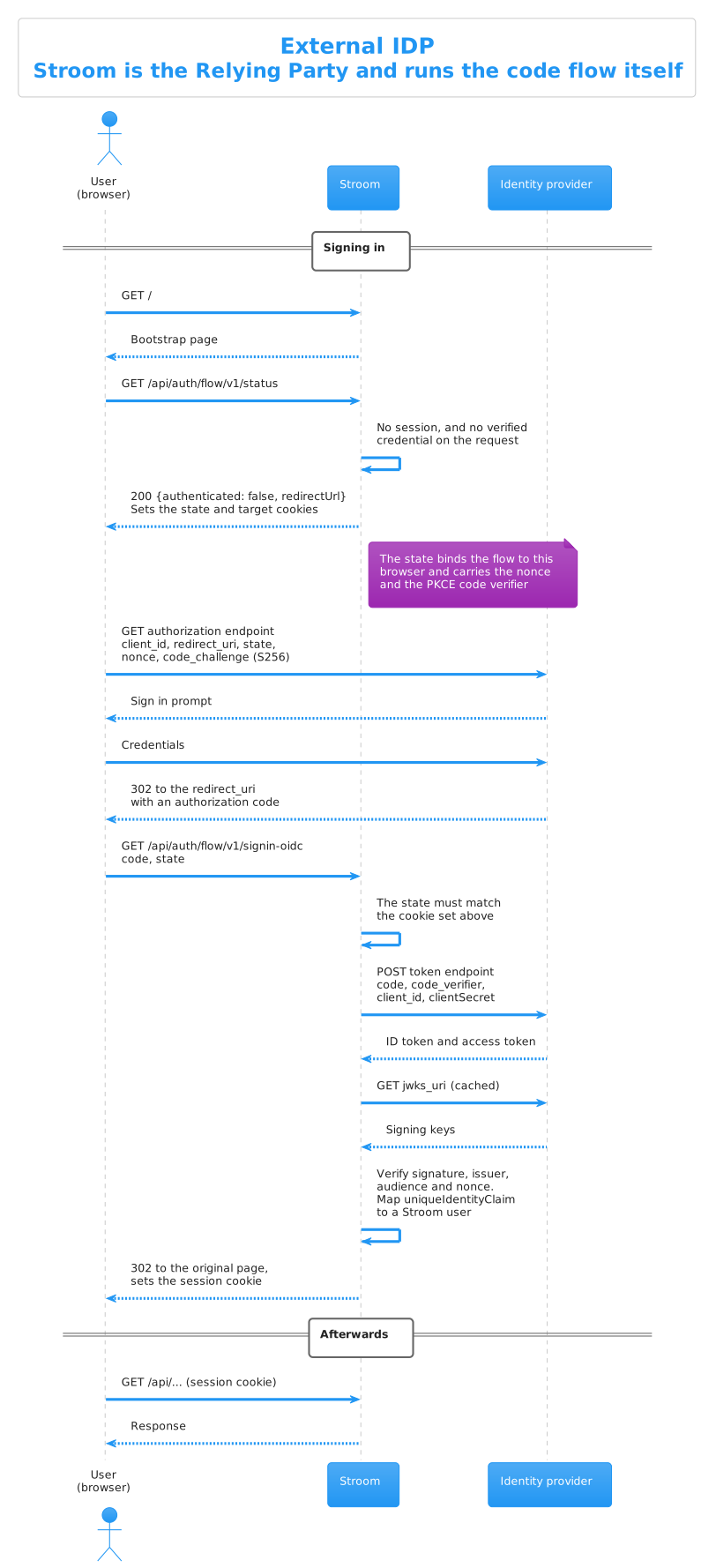
The Flow
Stroom is the Open ID Connect client, or Relying Party, and runs the authorization code flow itself.
The requirements in the rest of this page are all steps in that sequence: the redirect URI the IDP sends the code to, the PKCE challenge and verifier, the claims Stroom reads from the ID token, and the token validation it performs before creating the session.
See Also
If a proxy in front of Stroom performs this flow instead, see
Edge Proxy RP.
What Stroom Needs from the Provider
Stroom is a confidential OAuth 2.0 client using the authorization code flow.
To register it with a provider you need the following.
| What |
Value |
| Client type |
Confidential, i.e. one that is issued a client secret. Stroom is a server side application and keeps its secret on the server. |
| Grant type / flow |
Authorization code. Stroom does not use the implicit or password flows. |
| Redirect URI |
https://STROOM_FQDN/api/auth/flow/v1/signin-oidc (see below) |
| Post logout redirect URI |
https://STROOM_FQDN/ (see below) |
| PKCE |
Supported, and may be required (see below) |
| Scopes |
openid and email by default |
STROOM_FQDN is the public facing address of Stroom, which is what you have configured as appConfig.publicUri and is the address users type into their browser.
If Stroom is behind a load balancer or Nginx, it is that address and not the address of an individual node.
The Redirect URI
The redirect URI, sometimes called the callback or reply URL, is where the provider sends the user’s browser once they have authenticated.
Stroom uses a single fixed redirect URI:
https://STROOM_FQDN/api/auth/flow/v1/signin-oidc
Register that exact value.
It does not vary with the page the user was trying to reach, so there is no need to register a wildcard, and you should not do so.
The page the user came from is remembered separately by Stroom and does not travel through the provider.
Warning
Earlier versions of Stroom sent the user's current page as the redirect URI, which meant registering a wildcard such as https://STROOM_FQDN/* at the provider.
That is no longer how it works.
If you are upgrading, replace any such wildcard with the single exact URI above, otherwise sign in will be refused by the provider.
If Stroom is served under a path prefix, i.e. appConfig.publicUri.pathPrefix is set, that prefix comes before /api.
The Post Logout Redirect URI
When a user signs out, Stroom sends them to the provider’s logout endpoint and asks to be returned to Stroom’s public root:
https://STROOM_FQDN/
Stroom appends a state query parameter to that URI.
Providers that match post logout redirect URIs exactly may need to be told to permit it, so if sign out leaves the user on an error page at the provider, that is the usual cause.
The name of the parameter Stroom uses to pass this URI is controlled by logoutRedirectParamName, which may be post_logout_redirect_uri, the default and current specification, or redirect_uri for older providers.
PKCE
Stroom always sends a
PKCE
code_challenge using the S256 method, and the matching code_verifier when it exchanges the authorization code for tokens.
There is nothing to configure in Stroom for this.
Providers that require PKCE, and anything following OAuth 2.1, will be satisfied, and providers that do not support it ignore the extra parameters.
Where the provider lets you insist on PKCE, as KeyCloak does, you can safely turn that on.
Claims
Stroom reads three things about a user from the token.
| Setting |
Default |
Purpose |
uniqueIdentityClaim |
sub |
Links the identity at the provider to a Stroom user. Must be unique at the provider and must never change for a given person. |
userDisplayNameClaim |
preferred_username |
A friendlier name shown in the Stroom UI. Need not be unique and may change. |
fullNameClaimTemplate |
${name} |
Builds the user’s full name from claim values, e.g. '${given_name} ${family_name}'. |
Not every provider issues preferred_username, so check the provider page before assuming the defaults will do.
Warning
Do not set uniqueIdentityClaim to an email address or a username.
Both can be reassigned to a different person at the provider, and whoever holds it next would inherit the Stroom user, along with its permissions.
Token Validation
Stroom validates every token it is given, whether that is the id_token from an interactive sign in or a bearer access token presented to the API.
The signature must verify against a key from the provider’s JWKS, and the algorithm must be one of the RSA, RSA-PSS or ECDSA families.
Unsigned tokens and tokens signed with an HMAC algorithm are refused.
The issuer must match what the provider advertised, and the audience must match what Stroom expects.
Audience validation is the part most likely to need attention, because providers differ in what they put in the aud claim of an access token.
See Audience validation.
Note
id_tokens carry an aud claim holding the client id at every provider, so interactive sign in works with the default settings.
It is API authentication with access tokens where providers differ.
Users and Permissions
Authentication is handled by the provider.
Authorisation, i.e. what a user may do once they are in, is always handled by Stroom.
Whenever a user successfully signs in via the provider, Stroom automatically creates an entry for them in its own user table.
That user starts with no permissions and no group memberships, so an administrator must grant those.
This does mean a new user has to sign in once before an administrator can do anything with them.
The very first administrator is a chicken and egg problem, since there is nobody able to grant permissions yet.
That is solved with the manage_users command, described on each provider page.
1 - Stroom Configuration
A reference for every Stroom and Stroom-Proxy setting involved in authenticating against an external identity provider.
This page is the provider agnostic reference for the Stroom side of the configuration.
The provider specific pages give the values to put in it for a given
Identity Provider (IDP)
Identity Provider (IDP)
An Identity Provider is a system or service that can authenticate a user and assert their identity. Identity providers can support single sign on (SSO), which allows the user to sign in once to the Identity Provider so they are then authenticated to all systems using that IDP.
Click to see more details....
All of these settings live under security.authentication.openId in the config.yml file, beneath appConfig for Stroom and proxyConfig for Stroom-Proxy.
The structure is identical for both.
Note
identityProviderType cannot be changed at runtime; the application must be restarted for a change to take effect.
A Minimal Configuration
For most providers this is all that is needed:
  security:
    authentication:
      authenticationRequired: true
      openId:
        identityProviderType: EXTERNAL_IDP
        openIdConfigurationEndpoint: "https://IDP_HOST/.well-known/openid-configuration"
        clientId: "StroomClient"
        clientSecret: "CLIENT_SECRET"
        logoutEndpoint: "https://IDP_HOST/logout"
Replace IDP_HOST with the host of your provider, StroomClient with the client id it issued or you chose for Stroom, and CLIENT_SECRET with that client’s secret.
Stroom fetches the provider’s configuration document from openIdConfigurationEndpoint at startup and takes the issuer, authorization endpoint, token endpoint and JWKS URI from it.
The logout endpoint is not part of that document, so it is set separately.
If you also want data receipt to be authenticated:
  receive:
    # Require authentication for /datafeed requests
    authenticationRequired: true
    # Allow authentication using an Open ID token
    tokenAuthenticationEnabled: true
Choosing the Identity Provider
identityProviderType
identityProviderType: EXTERNAL_IDP
| Value |
Meaning |
INTERNAL_IDP |
Stroom’s own built in IDP. The default for Stroom, and not valid for Stroom-Proxy. |
EXTERNAL_IDP |
A 3rd party IDP. Stroom’s internal IDP can be the external IDP of a Stroom-Proxy. |
NO_IDP |
No IDP at all. Only for a Stroom-Proxy that forwards to a downstream proxy or Stroom and authenticates with an API key or certificate. |
Setting this to EXTERNAL_IDP makes openIdConfigurationEndpoint mandatory; Stroom will refuse to start without it.
Note
A
TEST_CREDENTIALS value existed in earlier versions and has been removed, along with the hard coded credentials behind it.
The replacement is described in
Insecure Test Credential.
Endpoints
openIdConfigurationEndpoint
The provider’s OIDC discovery document, conventionally at https://IDP_HOST/.well-known/openid-configuration.
Setting this is much the easiest approach, as Stroom reads the other endpoints from it.
issuer, authEndpoint, tokenEndpoint, jwksUri
Set these only if you are not using a configuration endpoint, or to override a value the provider advertises incorrectly.
Anything set here takes precedence over the discovery document.
logoutEndpoint
Where Stroom sends the user to sign out at the provider.
This is not part of the discovery document, so it always has to be set by hand, and some providers do not offer one at all.
If it is not set, signing out ends the Stroom session but leaves the user signed in at the provider, so their next visit signs them straight back in without being asked for credentials.
logoutRedirectParamName
logoutRedirectParamName: "post_logout_redirect_uri"
The query parameter Stroom uses to tell the provider where to send the user after signing out.
The only permitted values are post_logout_redirect_uri, the default and what the current specification says, and redirect_uri for older providers.
Client Credentials
clientId and clientSecret
The client, sometimes called an application, registered at the provider.
clientSecret may be left unset when the provider authenticates Stroom by mutual TLS instead of a secret.
Warning
The client secret is a credential.
Supply it through an environment variable or your secret management system rather than committing it to config.yml, and rotate it if it is ever exposed.
requestScopes
requestScopes:
  - "openid"
  - "email"
The scopes Stroom asks for during an interactive sign in.
Setting this replaces the defaults rather than adding to them, so include openid in whatever you set.
Add profile if you need the name, given_name or family_name claims for fullNameClaimTemplate.
clientCredentialsScopes
clientCredentialsScopes:
  - "openid"
The scopes used when Stroom or Stroom-Proxy requests a token for its own service user, rather than for a person.
Again, this replaces the default.
For Entra ID you will likely need api://CLIENT_ID/.default, where CLIENT_ID is that of the Stroom app registration, and possibly openid; see Microsoft Entra ID.
formTokenRequest: true
Whether the token request is sent as an HTML form body.
Some providers, Cognito among them, require this.
It is on by default and rarely needs changing.
Audience Validation
The aud claim of a token names the application the token was minted for.
Checking it is what stops a token issued to some other application at the same provider being replayed against Stroom.
Three settings control this.
validateAudience
validateAudience: true
On by default.
The audience is checked against allowedAudiences, or against clientId when allowedAudiences is empty.
Warning
Setting this to false disables audience checking altogether and is not recommended.
Any token that any application at the same provider can obtain would then be accepted by Stroom.
With identityProviderType: EXTERNAL_IDP and validateAudience left on, at least one of allowedAudiences or clientId must be set.
Stroom refuses to start otherwise, rather than letting mandatory validation quietly become a no-op.
allowedAudiences
allowedAudiences: []
A set of acceptable audience values, of which a token must carry at least one.
When empty, Stroom validates against clientId instead.
Set this when the provider puts something other than the client id in the aud claim of its access tokens, which is common.
audienceClaimRequired
audienceClaimRequired: true
On by default: a token with no aud claim at all is refused.
Set it to false only for a provider that omits the claim from its access tokens, Cognito being the obvious example.
Doing so does not disable validation; an aud claim, where one is present, still has to match.
Warning
The default changed from false to true, and an empty allowedAudiences used to mean no audience checking rather than checking against the client id.
On upgrade, a deployment whose provider does not put the Stroom client id in the aud claim of its access tokens will start rejecting API calls that previously worked.
Interactive sign in is unaffected, because id_tokens always carry the client id.
The fix is either to make the provider issue the right audience, which is preferable, or to list what it does issue in allowedAudiences.
See the provider pages for which applies to you.
Token Validation
requiredAccessTokenType
requiredAccessTokenType: null
The JOSE typ header value a token must carry to be accepted as a bearer access token on the API, for example at+jwt for a provider following
RFC 9068
, or Bearer for KeyCloak.
When set, a token of any other type, such as an id_token, is refused on the API even though its signature is perfectly valid.
That prevents an id_token, which is meant only to tell Stroom who signed in, being replayed as an access token.
Leave it unset, the default, to accept any type.
Set it once you have confirmed what your provider actually puts in that header; decoding the header of a real access token is the reliable way to find out.
This applies only to bearer tokens on the API.
It has no effect on the interactive sign in flow or on an AWS load balancer data token.
validIssuers
validIssuers: []
Additional issuers to accept on a token, beyond the one the provider advertises.
A token is accepted if its iss claim matches either the advertised issuer or any value listed here, so this is how to accept tokens from two generations of endpoint at once, e.g. Entra ID v1.0 and v2.0.
Stroom also checks at startup that the issuer in the provider’s configuration response is consistent with openIdConfigurationEndpoint.
When validIssuers is empty, the advertised issuer must be a parent path of that endpoint.
When validIssuers is set, the advertised issuer must instead be one of the listed values, and the parent path check is not applied.
So where a provider legitimately reports an issuer that is not a parent path of the endpoint, list it here, and whenever you set this property for any other reason, include the advertised issuer alongside the others or Stroom will not start.
Values are compared exactly, so trailing slashes matter.
Signature Algorithms
Not configurable.
Stroom accepts RS256/384/512, PS256/384/512 and ES256/384/512, and refuses unsigned tokens and tokens signed with an HMAC algorithm.
There is no reason to expect a mainstream provider to fall foul of this.
Claims
uniqueIdentityClaim
uniqueIdentityClaim: "sub"
The claim used to link an identity at the provider to a Stroom user.
It must be unique at the provider and must never change for a given person, which is why sub is the default and normally the right answer.
userDisplayNameClaim
userDisplayNameClaim: "preferred_username"
A friendlier name for the user in the Stroom UI.
Not used for identity, so it need not be unique and may change.
Change it if your provider does not issue preferred_username; email is the usual alternative.
fullNameClaimTemplate
fullNameClaimTemplate: '${name}'
Builds the user’s full name from claim values, for example '${given_name} ${family_name}'.
Claim names are case sensitive.
Note
Use single quotes in the YAML file, otherwise the ${...} variables are expanded when the configuration file is loaded rather than when a user signs in.
AWS Load Balancer Authentication
These apply when an AWS Application Load Balancer in front of Stroom performs the authentication and passes the result on in an x-amzn-oidc-data header.
expectedSignerPrefixes
expectedSignerPrefixes: []
The Amazon Resource Names of the load balancer(s) fronting Stroom, used to verify the signer in the JWT header.
Each value is the first N characters of an ARN and must include at least everything up to the colon after the account id, i.e. arn:aws:elasticloadbalancing:region-code:account-id:.
publicKeyUriPattern
publicKeyUriPattern: 'https://public-keys.auth.elb.${awsRegion}.amazonaws.com/${keyId}'
The pattern used to build the URI the load balancer’s public key is fetched from.
Supports the ${awsRegion} and ${keyId} variables, each of which may appear more than once.
Use single quotes, as with fullNameClaimTemplate.
Stroom-Proxy
Stroom-Proxy takes the same security.authentication.openId block, under proxyConfig.
identityProviderType: INTERNAL_IDP is not valid for a proxy; use EXTERNAL_IDP, or NO_IDP where the proxy has no OIDC infrastructure available to it.
A proxy has no interactive users, so the settings concerned with the sign in flow, i.e. the redirect URIs, requestScopes and the claim settings, do not come into play.
What it needs is the ability to obtain a token for its own service user via the client credentials grant, and to validate tokens on data it receives.
  receive:
    # Require authentication for /datafeed requests
    authenticationRequired: true
    # Allow authentication using an Open ID token
    tokenAuthenticationEnabled: true
  security:
    authentication:
      openId:
        identityProviderType: EXTERNAL_IDP
        openIdConfigurationEndpoint: "https://IDP_HOST/.well-known/openid-configuration"
        clientId: "StroomProxyClient"
        clientSecret: "CLIENT_SECRET"
Where the proxy forwards data to another proxy or to Stroom, it can attach a token for its service user, provided the destination is configured against the same provider:
  forwardHttpDestinations:
      # Adds a token for the service user to the request
    - addOpenIdAccessToken: true
      enabled: true
      name: "downstream"
      forwardUrl: "http://somehost/stroom/datafeed"
The client used by the proxy needs the client credentials grant enabled at the provider, and the destination must be willing to accept the audience that grant produces.
Not every provider supports issuing an OIDC token for a client credentials grant, so check the provider page.
Troubleshooting
Stroom will not start
If identityProviderType is set to ‘EXTERNAL’, property openIdConfigurationEndpoint must be set.
EXTERNAL_IDP requires a discovery endpoint.
If your provider genuinely has none, you cannot use this validation route; set the individual endpoints instead and raise it as an issue.
When identityProviderType is EXTERNAL_IDP and validateAudience is true (the default), you must configure either allowedAudiences or clientId…
Stroom will not start with audience validation switched on and nothing to validate against, rather than let the check quietly become a no-op.
Set clientId, which you almost certainly want anyway, or allowedAudiences.
Issuer ‘X’ obtained from configuration endpoint Y does not share the same base URI.
The provider is advertising an issuer that is not a parent path of the endpoint the document was fetched from, which the OIDC discovery specification says it should be.
Some providers do not follow this.
Where the value is genuinely correct for your provider, add it to validIssuers.
Issuer ‘X’ obtained from configuration endpoint Y does not match those in the ‘issuer’ or ‘validIssuers’ properties.
You have set issuer or validIssuers, and what the provider advertised is not among them.
Correct the configured value, or add the advertised one.
The provider refuses the sign in
An error at the provider, before the user gets back to Stroom, is almost always the redirect URI.
Check that https://STROOM_FQDN/api/auth/flow/v1/signin-oidc is registered exactly, using the same scheme, host, port and path prefix as appConfig.publicUri.
This is the single most common problem when upgrading, because Stroom used to send a different redirect URI for every page.
Sign in works but API calls are refused
Interactive sign in validates the id_token, whereas the API validates an access token, and providers treat the two differently.
So sign in working tells you the client id, secret and endpoints are all correct, and points at the token validation settings.
In order of likelihood:
- Audience.
The access token’s
aud claim does not match clientId or allowedAudiences, or the token has no aud claim and audienceClaimRequired is true.
See Audience validation.
- Token type.
requiredAccessTokenType is set to something the provider does not put in the token’s typ header.
Unset it, or correct it to the value the provider actually uses.
- Token type, the other way round.
The caller is presenting an
id_token rather than an access token.
Setting requiredAccessTokenType is what catches this.
Enable debug logging for stroom.security.common.impl.StandardJwtContextFactory to see the issuers, audiences and settings actually in use when a token is validated.
Users sign in but can see nothing
That is expected for a new user.
Authentication is all the provider does; permissions are granted in Stroom, and a new user has none.
See Users and permissions.
If an administrator you set up with manage_users cannot see anything either, remember that permissions are cached, so a restart may be needed if Stroom was running when the command was issued.
Signing out does not sign the user out of the provider
Either logoutEndpoint is unset, or the provider has no OIDC sign out endpoint, as is the case for Google.
The Stroom session ends either way, but the provider’s session does not, so the user’s next visit signs them straight back in.
2 - KeyCloak
How to set up KeyCloak as an external identity provider for Stroom.
This is a guide to setting up a new Stroom instance or cluster with
KeyCloak
as the 3rd party
Identity Provider (IDP)
Identity Provider (IDP)
An Identity Provider is a system or service that can authenticate a user and assert their identity. Identity providers can support single sign on (SSO), which allows the user to sign in once to the Identity Provider so they are then authenticated to all systems using that IDP.
Click to see more details....
It assumes you have deployed a new instance or cluster of Stroom and have not yet started it.
Note
This page covers Stroom itself being the OIDC client of the realm.
If an authenticating reverse proxy (e.g. NGINX with oauth2-proxy) in front of Stroom does the sign in against KeyCloak instead, see
NGINX, oauth2-proxy and KeyCloak.
Running KeyCloak
If you already have a KeyCloak instance running then move on to the next section.
This section is not a definitive guide to running or administering KeyCloak.
It describes how to run KeyCloak using non-production settings for simplicity and to demonstrate using a 3rd party IDP.
You should consult the KeyCloak documentation on how to set up a production ready instance.
The easiest way to run KeyCloak is using Docker.
To create a KeyCloak container do the following:
This example maps KeyCloak’s port to port 9999 to avoid any clash with Stroom that also runs on 8080.
This will create a docker container called keycloak that uses an embedded H2 database to hold its state.
To start the container in the foreground, do:
KeyCloak should now be running on
http://localhost:9999/admin
.
If you want to run KeyCloak on a different port then delete the container and create it with a different port for the -p argument.
Log into KeyCloak using the username admin and password admin as specified in the environment variables set in the container creation command above.
You should see the admin console.
Note
The admin console layout and the names of some settings vary between KeyCloak versions.
The steps below were written against the version above.
On a newer version the same settings may sit under differently named tabs, and the bootstrap admin environment variables have been renamed.
Creating a Realm
First you need to create a Realm.
- Click on the drop-down in the left pane that contains the word
master.
- Click Create Realm.
- Set the Realm name to
StroomRealm.
- Click Create.
Creating a Client
In the new realm click on Clients in the left pane, then Create client.
- Set the Client ID to
StroomClient.
- Click Next.
- Set Client authentication to on, which makes this a confidential client.
- Ensure the following are ticked:
- Standard flow
- Direct access grants
- Click Save.
Open the new Client and on the Settings tab set:
- Valid redirect URIs to
https://STROOM_FQDN/api/auth/flow/v1/signin-oidc
- Valid post logout redirect URIs to
https://STROOM_FQDN/*
Where STROOM_FQDN is the public address of Stroom, i.e. what you have set as appConfig.publicUri.
Warning
The redirect URI is a single exact value.
Do not use a wildcard such as https://STROOM_FQDN/* for it.
Earlier versions of Stroom sent the user's current page as the redirect URI and so did need a wildcard here.
If you are upgrading, replace it with the exact URI above.
The post logout redirect URI does use a wildcard, because Stroom appends a state parameter to it.
On the Advanced tab, under Advanced settings, set Proof Key for Code Exchange Code Challenge Method to S256.
Stroom always sends a PKCE challenge, so KeyCloak can be told to insist on one.
On the Credentials tab copy the Client secret for use later in Stroom config.
Adding an Audience Mapper
This step matters, and is easy to miss.
By default KeyCloak does not put the client id in the aud claim of the access tokens it issues; typically it puts account there instead.
Stroom validates the audience of every token it is given, so without this step API calls made with a KeyCloak access token are refused.
Interactive sign in still works, because the id_token does carry the client id.
In the realm, click Client scopes in the left pane, then the StroomClient-dedicated scope belonging to the client.
- Click Add mapper => By configuration => Audience.
- Set Name to
stroom-audience.
- Set Included Client Audience to
StroomClient.
- Ensure Add to access token is on.
- Click Save.
The alternative, if you would rather not change KeyCloak, is to tell Stroom what KeyCloak actually issues:
        allowedAudiences:
          - "account"
That is weaker, since account is an audience every client in the realm can obtain, so a token minted for another application in the same realm would be accepted by Stroom.
Prefer the mapper.
Creating Users
Click on Users in the left pane then Add user.
Set the following:
- Username -
admin
- First name -
Administrator
- Last name -
Administrator
Click Create.
Select the Credentials tab and click Set password.
Set the password to admin and set Temporary to off.
Note
Standard practice would be for there to be a number of administrators where each has their own identity (in their own name) on the IDP.
Each would be granted the Administrator application permission (directly or via a group).
For this example we are calling our administrator admin.
Repeat this process for the following user:
- Username -
jbloggs
- First name -
Joe
- Last name -
Bloggs
- Password -
password
Edit the config.yml file and set the following values:
  receive:
    # Set to true to require authentication for /datafeed requests
    authenticationRequired: true
    # Set to true to allow authentication using an Open ID token
    tokenAuthenticationEnabled: true
  security:
    authentication:
      authenticationRequired: true
      openId:
        # Tells Stroom to use an external IDP for authentication
        identityProviderType: EXTERNAL_IDP
        # The endpoint to obtain the rest of the IDP's configuration. Specific to the realm/issuer.
        openIdConfigurationEndpoint: "http://localhost:9999/realms/StroomRealm/.well-known/openid-configuration"
        # The client ID created in KeyCloak
        clientId: "StroomClient"
        # The client secret copied from KeyCloak above
        clientSecret: "XwTPPudGZkDK2hu31MZkotzRUdBWfHO6"
        # The URL on the IDP to redirect users to when logging out of Stroom
        logoutEndpoint: "http://localhost:9999/realms/StroomRealm/protocol/openid-connect/logout"
        # KeyCloak stamps its access tokens with a 'typ' header of 'Bearer'. Requiring it stops an
        # id_token being replayed against the API as though it were an access token.
        requiredAccessTokenType: "Bearer"
These values are obtained from the IDP.
In the case of KeyCloak they can be found by clicking on Realm settings => Endpoints => OpenID Endpoint Configuration and extracting the various values from the JSON response.
Alternatively they can typically be found at https://host/.well-known/openid-configuration on any Open ID Connect IDP.
The values will reflect the host and port that the IDP is running on along with the name of the realm.
Setting the above values assumes KeyCloak is running on localhost:9999 and the realm name is StroomRealm.
The claim defaults suit KeyCloak, so there is nothing to set for them.
KeyCloak issues preferred_username, which Stroom uses as the display name, and issues name where the user has a first and last name, which satisfies the default fullNameClaimTemplate of ${name}.
Note
Before setting requiredAccessTokenType, confirm the value your KeyCloak version actually uses by decoding the header of a real access token.
Leave it unset if in doubt; it is a hardening measure rather than a requirement.
Setting up the Admin User in Stroom
Now that the admin user exists in the IDP we need to grant it Administrator rights in Stroom.
In the Users section of KeyCloak click on user admin.
On the Details tab copy the value of the ID field.
The ID is in the form of a
UUID
UUID
A Universally Unique Identifier for uniquely identifying something. UUIDs are used as the identifier in Doc Refs. An example of a UUID is 4ffeb895-53c9-40d6-bf33-3ef025401ad3.
Click to see more details....
This ID is the sub claim, which is what Stroom uses to uniquely identify the user and associate it with the identity in KeyCloak.
To set up Stroom with this admin user run the following (before Stroom has been started for the first time):
Where XXX is the user ID copied from the IDP as described above.
This command is repeatable as it will skip any users/groups/memberships that already exist.
This command will do the following:
- Create the Stroom User by creating an entry in the
stroom_user database table for the IDP’s admin user.
- Ensure that an
Administrators group exists (i.e. an entry in the stroom_user database table for the Administrators group).
- Add the
admin user to the group Administrators.
- Grant the application permission
Administrator to the group Administrators.
Note
This process is only required to bootstrap the admin user, to allow them to log in with administrator rights and manage the permissions and group memberships of everyone else.
It does not need to be done for every user.
Whenever a user successfully logs in via the IDP, Stroom will automatically create an entry in the stroom_user table for that user.
The user will have no permissions or group memberships, so these will need to be applied by the administrator.
This does mean that new users will need to log in before the administrator can manage their permissions and memberships.
Logging into Stroom
As the Administrator
Now that the user and permissions have been set up in Stroom, the administrator can log in.
First start the Stroom instance or cluster.
Warning
If the manage_users command is run while Stroom is running you will likely not see the effect when logging in, as the user permissions are cached.
Without Administrator rights you will not be able to clear the caches, so you will need to wait for the cache entries to expire or restart Stroom.
Navigate to https://STROOM_FQDN and Stroom should re-direct you to the IDP (KeyCloak) to authenticate.
Enter the username admin and password admin.
You should be authenticated by KeyCloak and re-directed back to Stroom.
Your user ID is shown in the bottom right corner of the Welcome tab.
As an administrator, the
menu item will be available to manage the permissions of any users that have logged on at least once.
Now select
to be re-directed to the IDP to log out.
Once you log out of the IDP it should re-direct you back to Stroom, which will send you to the IDP login screen to log back in again.
As an Ordinary User
On the IDP login screen, log in as user jbloggs with the password password.
You will be re-directed to Stroom, however the explorer tree will be empty and most of the menu items will be disabled.
In order to gain permissions to do anything in Stroom, a Stroom administrator will need to grant application and document permissions and/or group memberships to the user via the
menu item.
Create a second client in KeyCloak for the proxy, following the steps above but with Service accounts roles enabled so that it can use the client credentials grant.
A proxy has no interactive users, so it needs no redirect URIs.
Edit the proxy’s config.yml file and set the following values:
  receive:
    # Set to true to require authentication for /datafeed requests
    authenticationRequired: true
    # Set to true to allow authentication using an Open ID token
    tokenAuthenticationEnabled: true
  security:
    authentication:
      openId:
        identityProviderType: EXTERNAL_IDP
        openIdConfigurationEndpoint: "http://localhost:9999/realms/StroomRealm/.well-known/openid-configuration"
        clientId: "StroomProxyClient"
        clientSecret: "THE_PROXY_CLIENT_SECRET"
        logoutEndpoint: "http://localhost:9999/realms/StroomRealm/protocol/openid-connect/logout"
If Stroom-Proxy is configured to forward data on to another Stroom-Proxy or Stroom instance then it can use tokens when forwarding that data.
This assumes the downstream Stroom or Stroom-Proxy is also configured to use the same external IDP.
  forwardHttpDestinations:

      # If true, adds a token for the service user to the request
    - addOpenIdAccessToken: true
      enabled: true
      name: "downstream"
      forwardUrl: "http://somehost/stroom/datafeed"
The token used will be for the service user account of the identity provider client used by Stroom-Proxy.
That token’s audience is validated at the destination just like any other, so the destination needs either an audience mapper on the proxy’s client, or the audience the proxy’s tokens actually carry listed in its allowedAudiences.
3 - Amazon Cognito
How to set up an Amazon Cognito user pool as an external identity provider for Stroom.
This page covers using an
Amazon Cognito
user pool as Stroom’s
Identity Provider (IDP)
Identity Provider (IDP)
An Identity Provider is a system or service that can authenticate a user and assert their identity. Identity providers can support single sign on (SSO), which allows the user to sign in once to the Identity Provider so they are then authenticated to all systems using that IDP.
Click to see more details....
Note
This page covers Stroom itself being the OIDC client of the user pool.
If Stroom sits behind an AWS Application Load Balancer whose listener rule does the authentication, the load balancer is the client instead - see
AWS Application Load Balancer.
Cognito differs from a typical OIDC provider in two ways that directly affect the Stroom configuration, so they are worth knowing before you start.
- Its access tokens carry no
aud claim, using client_id instead.
Stroom requires an audience claim by default, so this has to be turned off.
- Its authorization, token and sign out endpoints belong to the hosted UI domain, which is separate from the user pool’s issuer host.
Creating the User Pool and App Client
In the AWS console, under Cognito:
- Create a user pool, or use an existing one.
- Configure a domain for the pool, either a Cognito prefix domain giving
https://YOUR_PREFIX.auth.REGION.amazoncognito.com, or your own custom domain.
This provides the hosted UI and the OAuth endpoints, and is required.
- Create an app client of the confidential type, i.e. one with a client secret.
- Enable the Authorization code grant for the client.
Do not enable the implicit grant.
- Set the OpenID Connect scopes to at least
openid and email.
- Set the Allowed callback URL to
https://STROOM_FQDN/api/auth/flow/v1/signin-oidc.
- Set the Allowed sign out URL to
https://STROOM_FQDN/.
- Note the app client id and app client secret, and the user pool id.
Where STROOM_FQDN is the public address of Stroom, i.e. what you have set as appConfig.publicUri.
Note
Cognito requires callback URLs to use https, other than for http://localhost.
It matches them exactly and does not accept wildcards, so register the single URI above rather than anything broader.
Cognito supports PKCE, and Stroom always sends an S256 challenge, so there is nothing to configure for it.
The Endpoints
Two different hosts are involved.
| Purpose |
Host |
| Issuer, discovery document, JWKS |
https://cognito-idp.REGION.amazonaws.com/USER_POOL_ID |
| Authorization, token, sign out |
Your pool’s domain, e.g. https://YOUR_PREFIX.auth.REGION.amazoncognito.com |
The discovery document is at:
https://cognito-idp.REGION.amazonaws.com/USER_POOL_ID/.well-known/openid-configuration
Set openIdConfigurationEndpoint to it, so that Stroom picks up the issuer and the JWKS URI.
Set authEndpoint and tokenEndpoint explicitly to your pool’s domain, since those are the endpoints your users and Stroom actually need to reach:
https://YOUR_PREFIX.auth.REGION.amazoncognito.com/oauth2/authorizehttps://YOUR_PREFIX.auth.REGION.amazoncognito.com/oauth2/token
Note
Compare these against what your pool's discovery document advertises.
Where the two agree you can leave authEndpoint and tokenEndpoint unset and let the discovery document supply them; setting them explicitly is the reliable option.
Configuring Stroom
  receive:
    # Set to true to require authentication for /datafeed requests
    authenticationRequired: true
    # Set to true to allow authentication using an Open ID token
    tokenAuthenticationEnabled: true
  security:
    authentication:
      authenticationRequired: true
      openId:
        identityProviderType: EXTERNAL_IDP
        openIdConfigurationEndpoint: "https://cognito-idp.eu-west-2.amazonaws.com/eu-west-2_ABC123456/.well-known/openid-configuration"
        # The hosted UI endpoints, which are on the pool's domain rather than the issuer host
        authEndpoint: "https://mydomain.auth.eu-west-2.amazoncognito.com/oauth2/authorize"
        tokenEndpoint: "https://mydomain.auth.eu-west-2.amazoncognito.com/oauth2/token"
        logoutEndpoint: "https://mydomain.auth.eu-west-2.amazoncognito.com/logout"
        # The app client id and secret
        clientId: "1h57kf5cpparlm9m52319hsnrf"
        clientSecret: "THE_APP_CLIENT_SECRET"
        # Cognito requires the token request to be sent as a form. This is the default.
        formTokenRequest: true
        # Cognito access tokens carry no 'aud' claim, so an absent one must not be a failure.
        # An 'aud' claim that IS present, as on an id_token, is still validated against clientId.
        audienceClaimRequired: false
        # Cognito does not issue 'preferred_username'
        userDisplayNameClaim: "cognito:username"
Audience Validation
This is the setting most likely to catch you out.
A Cognito id_token, used by interactive sign in, carries aud set to the app client id, so it validates against clientId with no further configuration.
A Cognito access token, used for API calls, carries no aud claim at all; the equivalent information is in a client_id claim, which is not something Stroom validates against.
With the default of audienceClaimRequired: true those tokens are refused, so set it to false.
Warning
audienceClaimRequired defaults to true, having previously defaulted to false.
If you are upgrading an existing Cognito deployment, add audienceClaimRequired: false before you upgrade, otherwise API calls made with Cognito access tokens will start being refused.
Interactive sign in is unaffected.
Leave validateAudience at its default of true.
Setting it to false would switch off audience checking for the id_token as well, which Cognito populates perfectly well.
Claims
Cognito does not issue a preferred_username claim unless the user pool has been set up with that attribute, so the Stroom default for userDisplayNameClaim will usually not resolve.
Use cognito:username, or email where every user has one.
uniqueIdentityClaim should be left as sub, which for Cognito is a UUID that is stable for the life of the user.
Warning
Do not be tempted to use email or cognito:username as the uniqueIdentityClaim.
Both can be changed or reassigned to another person, who would then inherit the Stroom user and its permissions.
For fullNameClaimTemplate to resolve, the corresponding attributes must be populated on the user and included in the token.
Add profile to requestScopes if you need name, given_name or family_name.
Signing Out
Cognito’s sign out endpoint has historically expected the return address in a logout_uri parameter rather than the post_logout_redirect_uri that Stroom sends.
Check whether sign out returns your users to Stroom.
If it leaves them on an error page at Cognito, try:
logoutRedirectParamName: "redirect_uri"
Those two values are the only ones Stroom accepts.
If neither works with your pool, leave logoutEndpoint unset; signing out will then end the Stroom session without signing the user out of Cognito, which means their next visit will sign them straight back in without being asked for credentials.
Access Token Type
Leave requiredAccessTokenType unset unless you have decoded the header of a real Cognito access token and confirmed what it contains.
It is a hardening measure, and setting it to a value your provider does not use will refuse every API call.
Setting up the Admin User in Stroom
The bootstrap process is the same as for any provider.
Find the sub of the user who is to be the administrator, which for Cognito is the user’s UUID as shown in the console, then run the manage_users command before starting Stroom for the first time.
Stroom-Proxy with Cognito
A Stroom-Proxy obtains a token for its own service user using the client credentials grant.
In Cognito that grant requires a resource server with custom scopes defined on it, and the resulting tokens carry those custom scopes rather than openid.
Set clientCredentialsScopes to the custom scopes you have defined:
  security:
    authentication:
      openId:
        identityProviderType: EXTERNAL_IDP
        openIdConfigurationEndpoint: "https://cognito-idp.eu-west-2.amazonaws.com/eu-west-2_ABC123456/.well-known/openid-configuration"
        tokenEndpoint: "https://mydomain.auth.eu-west-2.amazoncognito.com/oauth2/token"
        clientId: "THE_PROXY_APP_CLIENT_ID"
        clientSecret: "THE_PROXY_APP_CLIENT_SECRET"
        formTokenRequest: true
        audienceClaimRequired: false
        clientCredentialsScopes:
          - "https://stroom.example.com/api.write"
The destination the proxy forwards to must be configured to accept the tokens this produces, which again means audienceClaimRequired: false at that end.
4 - Google
How to set up Google as an external identity provider for Stroom.
This page covers using
Google Identity
as Stroom’s
Identity Provider (IDP)
Identity Provider (IDP)
An Identity Provider is a system or service that can authenticate a user and assert their identity. Identity providers can support single sign on (SSO), which allows the user to sign in once to the Identity Provider so they are then authenticated to all systems using that IDP.
Click to see more details..., whether for consumer Google accounts or for a Google Workspace domain.
Warning
Google is a more limited choice than KeyCloak or Cognito, in three respects.
- Its access tokens are opaque, not JWTs.
Stroom cannot validate them, so token authentication for the API and for data receipt does not work with Google.
Use Stroom
API Keys
API Key
API Keys are a form of authentication token that are created within Stroom for use by Stroom-Proxy instances or other clients that want to use Stroom’s API. It is an encrypted string that contains details of the user and the expiration date of the token. Possession of a valid API Key for a user account means that you can do anything that the user can do in the user interface via the API.
Click to see more details… instead.
- It has no OIDC sign out endpoint.
Signing out of Stroom cannot sign the user out of Google.
- It has no OIDC client credentials grant.
A Stroom-Proxy cannot obtain a service user token from Google.
Interactive sign in to the Stroom UI works perfectly well.
It is the machine to machine paths that Google does not serve.
Creating the OAuth Client
In the
Google Cloud Console
:
- Select or create a project.
- Configure the OAuth consent screen.
For a Workspace domain choose the Internal user type, which restricts sign in to your own domain.
For consumer accounts the only option is External.
- Go to APIs & Services => Credentials => Create Credentials => OAuth client ID.
- Choose an application type of Web application.
- Under Authorised redirect URIs, add
https://STROOM_FQDN/api/auth/flow/v1/signin-oidc.
- Create the client and note the Client ID and Client secret.
Where STROOM_FQDN is the public address of Stroom, i.e. what you have set as appConfig.publicUri.
Warning
Google matches redirect URIs exactly and does not accept wildcards of any kind.
It also requires https, other than for http://localhost.
This means that older Stroom guidance to register something like https://STROOM_FQDN/* could never have worked with Google.
Stroom now uses the single fixed callback URI above, which Google accepts.
Google supports PKCE, and Stroom always sends an S256 challenge, so there is nothing to configure for it.
There is no sign out URL to register, because Google has no OIDC sign out endpoint to register one with.
Configuring Stroom
  security:
    authentication:
      authenticationRequired: true
      openId:
        identityProviderType: EXTERNAL_IDP
        openIdConfigurationEndpoint: "https://accounts.google.com/.well-known/openid-configuration"
        clientId: "123456789012-abcdefghijklmnop.apps.googleusercontent.com"
        clientSecret: "THE_CLIENT_SECRET"
        # Google issues no 'preferred_username' claim
        userDisplayNameClaim: "email"
        # 'profile' is needed for the 'name' claim used by fullNameClaimTemplate
        requestScopes:
          - "openid"
          - "email"
          - "profile"
The discovery document supplies the issuer, https://accounts.google.com, along with the authorization, token and JWKS endpoints, so none of those need setting by hand.
Note that logoutEndpoint is deliberately absent; see Signing out below.
Audience Validation
Nothing to do.
Google’s id_token carries aud set to your client id, so it validates against clientId with the default settings.
Claims
Google issues sub, email, email_verified, name, given_name, family_name and picture, and hd for a Workspace account.
It does not issue preferred_username, which is Stroom’s default for userDisplayNameClaim, so that has to be changed.
email is the natural choice.
name, given_name and family_name require the profile scope, which is why it is added to requestScopes above.
Without it the default fullNameClaimTemplate of ${name} will not resolve.
Leave uniqueIdentityClaim as sub.
Google’s sub is stable for a given account, unlike the email address.
Warning
Do not set uniqueIdentityClaim to email.
A Workspace administrator can reassign an address to a different person, who would then inherit the Stroom user and all of its permissions.
Google's own guidance is to key on sub for exactly this reason.
Signing Out
Google offers no OIDC sign out endpoint, so leave logoutEndpoint unset.
Logging out of Stroom then ends the Stroom session but leaves the user signed in to Google.
Their next visit to Stroom will sign them straight back in without being asked for credentials, which is worth being aware of on a shared machine.
Do not point logoutEndpoint at a general Google sign out URL, as that would sign the user out of every Google service on that browser, which is unlikely to be what they expect from a Stroom logout.
Access Token Type
Leave requiredAccessTokenType unset.
It applies to JWT bearer tokens on the API, and Google’s access tokens are not JWTs.
Restricting Who Can Sign In
Authentication and authorisation are separate.
Anyone Google will authenticate can complete a sign in and have a Stroom user created for them, but that user starts with no permissions and no group memberships, so they can see nothing.
Even so, you should restrict who can reach the sign in at all:
- For a Workspace domain, set the OAuth consent screen to Internal, so only accounts in your domain can authenticate.
- For consumer accounts there is no equivalent, so any Google account can reach the consent screen.
Consider whether Google is the right provider in that case.
Stroom has no configuration to restrict sign in by hd or email domain, so this has to be done at Google.
Setting up the Admin User in Stroom
Find the sub of the account that is to be the administrator.
Unlike KeyCloak and Cognito, Google does not show this in an admin console; the reliable way to obtain it is to decode an id_token issued for that account, or read it from Stroom’s logs after the person has signed in once.
The simplest route is therefore:
- Configure Stroom as above and start it.
- Have the intended administrator sign in once.
They will land in Stroom with no permissions.
- Read their
sub from the Stroom logs, or from the
screen if another administrator is available.
- Run the
manage_users command with that value, then restart Stroom so the permission caches are rebuilt.
The command is repeatable and will skip anything that already exists, so running it against a user that signed in earlier is fine.
Data Receipt and the API
Because Google’s access tokens are opaque rather than JWTs, Stroom cannot validate them, so this will not work:
  receive:
    authenticationRequired: true
    tokenAuthenticationEnabled: true
Use Stroom
API Keys
API Key
API Keys are a form of authentication token that are created within Stroom for use by Stroom-Proxy instances or other clients that want to use Stroom’s API. It is an encrypted string that contains details of the user and the expiration date of the token. Possession of a valid API Key for a user account means that you can do anything that the user can do in the user interface via the API.
Click to see more details... for API clients and for feed status checks, or client certificates for data receipt.
Stroom-Proxy with Google
Google has no OIDC client credentials grant, so a Stroom-Proxy cannot obtain a service user token from it, and addOpenIdAccessToken on a forward destination has nothing to add.
Configure the proxy with identityProviderType: NO_IDP and give it an API key created in Stroom:
  feedStatus:
    apiKey: "AN_API_KEY_CREATED_IN_STROOM"
  security:
    authentication:
      openId:
        identityProviderType: NO_IDP
5 - Microsoft Entra ID (Azure AD)
How to set up Microsoft Entra ID, formerly Azure Active Directory, as an external identity provider for Stroom.
This page covers using
Microsoft Entra ID
as Stroom’s
Identity Provider (IDP)
Identity Provider (IDP)
An Identity Provider is a system or service that can authenticate a user and assert their identity. Identity providers can support single sign on (SSO), which allows the user to sign in once to the Identity Provider so they are then authenticated to all systems using that IDP.
Click to see more details....
Entra ID is the current name for what was Azure Active Directory, and much of the tooling and documentation still says Azure AD.
Note
This page covers Stroom itself being the OIDC client of Entra ID.
If an authenticating proxy in front of Stroom does the sign in instead, the proxy is the client and much of this page does not apply - see
AWS Application Load Balancer or
NGINX and oauth2-proxy.
Entra ID has two generations of endpoint, v1.0 and v2.0, which issue tokens with different issuers and different formats.
Two of the three things most likely to go wrong here come from mixing them up, so it is worth being deliberate: use the v2.0 endpoints throughout.
Creating the App Registration
In the
Microsoft Entra admin centre
, or the Azure portal under Microsoft Entra ID:
- Go to App registrations => New registration.
- Give it a name, e.g.
Stroom.
- For Supported account types choose Accounts in this organizational directory only, i.e. single tenant, unless you have a specific reason not to.
This restricts sign in to your own tenant.
- Under Redirect URI select a platform of Web and enter
https://STROOM_FQDN/api/auth/flow/v1/signin-oidc.
- Click Register, then note the Application (client) ID and the Directory (tenant) ID from the overview page.
Where STROOM_FQDN is the public address of Stroom, i.e. what you have set as appConfig.publicUri.
Warning
Entra ID matches redirect URIs exactly and does not accept wildcards.
It also requires https, other than for http://localhost.
Register the single exact URI above.
Earlier versions of Stroom sent the user's current page as the redirect URI; if you are upgrading, remove whatever was registered for that.
Then, still in the app registration:
- Under Authentication, add a Front-channel logout URL of
https://STROOM_FQDN/, and add the same value under Redirect URIs if your tenant requires post logout redirect URIs to be registered.
- Under Certificates & secrets => Client secrets, create a new secret and copy its Value immediately, as it is only shown once.
Warning
Entra ID client secrets expire, with a maximum lifetime of 24 months.
When the secret expires Stroom will stop being able to exchange authorization codes for tokens and nobody will be able to sign in.
Record the expiry date and plan the rotation, or use certificate credentials instead.
Entra ID supports PKCE, and Stroom always sends an S256 challenge, so there is nothing to configure for it.
Exposing an API for Access Tokens
This step is what makes API authentication work, and is the Entra ID equivalent of KeyCloak’s audience mapper.
If Stroom only ever asks for the openid, email and profile scopes, Entra ID issues an access token for Microsoft Graph rather than for Stroom.
Those tokens are intended only for Graph, are not in a format a third party can validate, and will fail validation at Stroom.
Interactive sign in still works throughout, because it uses the id_token.
To get an access token that Stroom can validate, the app registration has to expose an API of its own:
- Go to Expose an API => Add next to Application ID URI.
Accept the default of
api://CLIENT_ID, or set your own.
- Click Add a scope, name it something like
user_impersonation, and choose who can consent.
- Under Manifest, set
accessTokenAcceptedVersion to 2.
Note
accessTokenAcceptedVersion defaults to null, which means v1.0.
A v1.0 access token has an issuer of https://sts.windows.net/TENANT_ID/, which does not match the v2.0 issuer that Stroom obtains from the v2.0 discovery document, so such tokens are refused.
Setting it to 2 is the clean fix.
See Issuers if you have a reason to stay on v1.0.
Callers then request that scope, e.g. api://CLIENT_ID/user_impersonation, and the resulting access token carries an aud claim that Stroom can be configured to accept.
Configuring Stroom
  receive:
    # Set to true to require authentication for /datafeed requests
    authenticationRequired: true
    # Set to true to allow authentication using an Open ID token
    tokenAuthenticationEnabled: true
  security:
    authentication:
      authenticationRequired: true
      openId:
        identityProviderType: EXTERNAL_IDP
        # Note the '/v2.0' path part. Without it you get the v1.0 endpoints and a different issuer.
        openIdConfigurationEndpoint: "https://login.microsoftonline.com/TENANT_ID/v2.0/.well-known/openid-configuration"
        # The Application (client) ID from the app registration overview
        clientId: "CLIENT_ID"
        clientSecret: "CLIENT_SECRET"
        logoutEndpoint: "https://login.microsoftonline.com/TENANT_ID/oauth2/v2.0/logout"
        # Accept both the id_token audience (the client id) and the access token audience
        # (the Application ID URI). Adjust to match what your tokens actually carry.
        allowedAudiences:
          - "CLIENT_ID"
          - "api://CLIENT_ID"
        # Accept tokens from both the v2.0 and the v1.0 endpoints. Setting this replaces
        # Stroom's default issuer check, so the v2.0 issuer must be listed too.
        validIssuers:
          - "https://login.microsoftonline.com/TENANT_ID/v2.0"
          - "https://sts.windows.net/TENANT_ID/"
        # Entra ID only issues the 'name' and 'preferred_username' claims when 'profile'
        # is requested, and Stroom's default scopes do not include it.
        requestScopes:
          - "openid"
          - "email"
          - "profile"
        # 'oid' is stable across app registrations; the default of 'sub' is not.
        uniqueIdentityClaim: "oid"
Replace TENANT_ID with the Directory (tenant) ID, CLIENT_ID with the Application (client) ID, and CLIENT_SECRET with the value of the client secret, all from the app registration’s Overview and Certificates & secrets pages.
Each of validIssuers, requestScopes and uniqueIdentityClaim is explained in the sections that follow.
Issuers
The v2.0 discovery endpoint advertises an issuer of https://login.microsoftonline.com/TENANT_ID/v2.0, which is a parent path of the discovery endpoint itself, so Stroom’s issuer check is satisfied with no extra configuration.
The v1.0 endpoints are not so tidy.
Their issuer is https://sts.windows.net/TENANT_ID/, which shares no base URI with the discovery endpoint, and Stroom will refuse to start with:
Issuer ‘X’ obtained from configuration endpoint Y does not share the same base URI.
If you must use v1.0, or you have v1.0 access tokens in circulation from an app registration you cannot change, list both issuers explicitly, as in the example above:
        validIssuers:
          - "https://login.microsoftonline.com/TENANT_ID/v2.0"
          - "https://sts.windows.net/TENANT_ID/"
Stroom then accepts tokens carrying either issuer, so v1.0 and v2.0 tokens can be in use at the same time.
Warning
When validIssuers is set, the issuer advertised by the discovery document must be one of the values in it; the parent path check described above is no longer applied.
Listing only the v1.0 issuer against the v2.0 discovery endpoint will stop Stroom starting with:
> Issuer 'X' obtained from configuration endpoint Y does not match those in the 'issuer' or 'validIssuers' properties.
Always include the v2.0 issuer alongside the v1.0 one.
The values must match exactly, including the /v2.0 suffix on one and the trailing / on the other.
Using the v2.0 endpoints and accessTokenAcceptedVersion: 2 is much the better answer, in which case validIssuers can be omitted altogether.
Note
Do not use the common or organizations endpoints in place of a tenant id.
Their discovery documents report an issuer containing a literal {tenantid} placeholder rather than a real value, and they allow sign in from any tenant, which is unlikely to be what you want.
Audience Validation
An Entra ID id_token carries aud set to the Application (client) ID, so interactive sign in validates against clientId with no further configuration.
An access token for your exposed API carries aud set to either the Application ID URI or the client id, depending on accessTokenAcceptedVersion and how the scope was requested.
Listing both in allowedAudiences, as above, covers either.
Warning
Do not simply set audienceClaimRequired: false to make a rejection go away.
Entra ID does populate the audience claim, so an absent one means the token is not the one you think it is, most likely a Microsoft Graph token, and loosening the check hides that rather than fixing it.
Leave validateAudience at its default of true.
Claims
Entra ID v2.0 issues preferred_username, normally the user principal name, which Stroom uses as the display name by default, and name, which satisfies the default fullNameClaimTemplate of ${name}.
Both of those claims are only issued when the profile scope is requested.
Stroom’s default requestScopes is openid and email, which does not include it, so without the requestScopes shown in the example above users will sign in with no display name or full name.
Setting requestScopes replaces the defaults rather than adding to them, so keep openid and email in the list.
For uniqueIdentityClaim you have a choice:
| Claim |
Notes |
sub |
The Stroom default. In Entra ID this is pairwise, i.e. a different value per application, and stable for the life of that app registration. Delete and recreate the app registration and every user’s sub changes, orphaning their Stroom user. |
oid |
The user’s object id in the directory. Stable across applications and across app registrations, so it survives a re-registration. Unique within a tenant. |
oid is the more robust choice for a single tenant deployment, and is what Microsoft’s own guidance points to as the durable identifier.
sub is fine if you are confident the app registration will not be recreated.
The example above uses oid; remove that line to keep the default of sub.
Warning
Whichever you choose, decide before the first user signs in.
Changing it later means every existing Stroom user is orphaned, and their permissions and group memberships have to be reapplied to the new identities.
Do not use preferred_username, email or upn; all can be reassigned to a different person, who would then inherit the Stroom user.
Group and Role Claims
Entra ID can be configured to emit groups and roles claims.
Stroom does not consume them.
All authorisation is done with Stroom’s own users, groups and permissions, so directory group membership has no effect on what a user can do in Stroom.
Access Token Type
Leave requiredAccessTokenType unset until you have decoded the header of a real access token from your tenant and confirmed what it contains.
Setting it to a value your tokens do not use will refuse every API call.
Setting up the Admin User in Stroom
Find the identifier of the account that is to be the administrator, matching whatever you set uniqueIdentityClaim to.
If you are using oid, it is shown as the Object ID on the user’s page under Users in the Entra admin centre.
If you are using sub, it is pairwise and not shown anywhere in the portal, so you will need to decode an id_token issued for that user, or have them sign in once and read it from the Stroom logs.
Then run the following, ideally before Stroom has been started for the first time:
The command is repeatable and will skip anything that already exists, so running it against a user who has already signed in is fine.
Restart Stroom afterwards if it was running, as permissions are cached.
Stroom-Proxy with Entra ID
A Stroom-Proxy obtains a token for its own service user using the client credentials grant.
Create a second app registration for the proxy, then grant it access to the API exposed by the Stroom app registration:
- In the proxy’s app registration, go to API permissions => Add a permission => My APIs and select the Stroom app registration.
- Choose Application permissions, which is the client credentials case, rather than delegated permissions.
- Have a directory administrator grant admin consent, without which the grant will fail.
Entra ID’s client credentials flow uses the .default scope of the target API:
  security:
    authentication:
      openId:
        identityProviderType: EXTERNAL_IDP
        openIdConfigurationEndpoint: "https://login.microsoftonline.com/TENANT_ID/v2.0/.well-known/openid-configuration"
        # The proxy's own app registration
        clientId: "PROXY_CLIENT_ID"
        clientSecret: "PROXY_CLIENT_SECRET"
        # The Application ID URI of the Stroom app registration, not the proxy's
        clientCredentialsScopes:
          - "api://CLIENT_ID/.default"
Note
Stroom's default for clientCredentialsScopes is openid, and its configuration description suggests setting openid alongside the .default scope.
Entra ID's v2.0 client credentials flow generally accepts a .default scope on its own and rejects it being combined with others, so start with just the .default scope as above and add openid only if your tenant requires it.
The destination the proxy forwards to must accept the audience these tokens carry, which will be the Application ID URI or client id of the Stroom app registration, so make sure it appears in that destination’s allowedAudiences.
Obtaining a Token to Send Data
When a Stroom-Proxy, or Stroom itself, is configured with Entra ID as above and has receive.authenticationRequired and receive.tokenAuthenticationEnabled both set to true, anything sending data to /datafeed must present an Entra ID access token, or a certificate, with each request.
See Token Authentication for how the token is attached.
This section covers how a sending system gets that token.
It is the mirror image of Stroom-Proxy with Entra ID: the sender is a client of the API exposed by the Stroom app registration in exactly the same way the proxy is, and uses the same client credentials grant.
Registering the Sender
Each sending system needs an app registration of its own, so that it has a client id and secret to authenticate with and can be granted, or revoked, individually.
- Create an app registration for the sender, e.g.
Stroom Sender - Widget Service.
No redirect URI is needed as it will never sign in interactively.
- Under Certificates & secrets, create a client secret and record its value.
- Under API permissions => Add a permission => My APIs, select the Stroom app registration.
- Choose Application permissions, not delegated permissions.
- Have a directory administrator grant admin consent, without which the token request will fail.
The Stroom app registration must already expose an API with accessTokenAcceptedVersion set to 2.
If it does not, the token comes back as a v1.0 token with an issuer of https://sts.windows.net/TENANT_ID/ and is refused unless that issuer is listed in validIssuers, see Issuers.
Requesting the Token
The sender asks the v2.0 token endpoint for a token using the client credentials grant.
The scope is the .default scope of the Stroom app registration’s Application ID URI, not openid or email; asking for those returns a token for Microsoft Graph that Stroom cannot validate.
Where:
TENANT_ID is the Directory (tenant) ID.SENDER_CLIENT_ID and SENDER_CLIENT_SECRET are from the sender’s app registration.STROOM_APP_ID_URI is the Application ID URI of the Stroom app registration, as shown under Expose an API.
The default form is api://<CLIENT_ID>, where CLIENT_ID is the Stroom app registration’s client id, not the sender’s, and it is the same value used in the proxy’s clientCredentialsScopes above.
The response is a JSON document containing access_token, token_type and expires_in; the command above extracts just the token.
A 400 response instead carries error and error_description fields, the latter with an AADSTS code and a message that says what is wrong.
The usual causes are a wrong or expired client secret, a scope that is not the .default scope of an API the Stroom app registration actually exposes, or admin consent not having been granted.
Sending Data with the Token
The token goes in the Authorization header as a bearer token, alongside the usual header arguments:
Tokens are short lived, typically around an hour, so a sender must request a fresh token when expires_in has elapsed or a request is refused with a 401, rather than caching one indefinitely.
See Also
See
curl (Linux) for more on sending data with curl.
Checking the Token
If the proxy rejects the token, decode its payload before assuming the proxy is at fault:
Check that:
iss is https://login.microsoftonline.com/TENANT_ID/v2.0.
If it is https://sts.windows.net/TENANT_ID/ the Stroom app registration is still issuing v1.0 tokens, see Exposing an API for Access Tokens.aud is a value that appears in the proxy’s allowedAudiences.
It will be the Application ID URI or the client id of the Stroom app registration.exp is in the future.
Once accepted, the sender’s identity is recorded against the received data in the UploadUserId meta attribute, taken from the claim named in uniqueIdentityClaim.
For a client credentials token that is the oid of the sender’s service principal, so it is that value, not the app registration’s display name, that you match on in Data Receipt Rules.