This is the multi-page printable view of this section. Click here to print.
Authentication
- 1: Login
- 2: Create a user
- 3: Logout
1 - Login
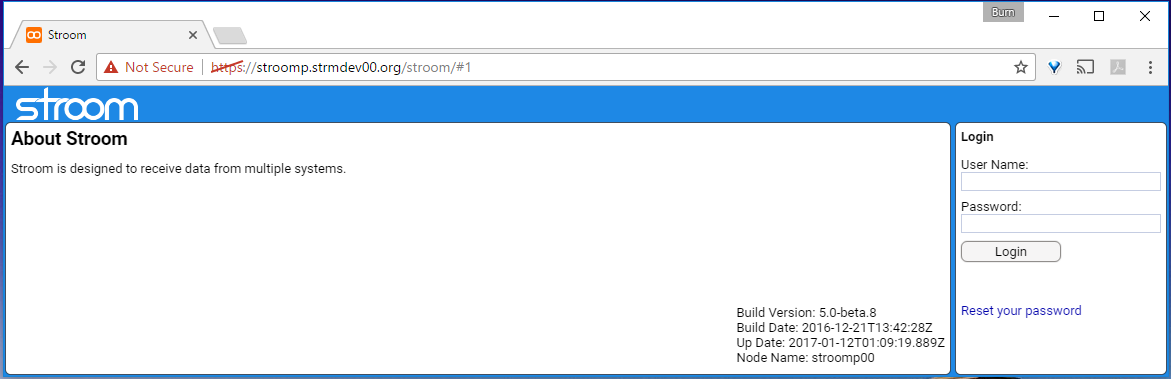
This walks through a first login as the default admin account.
For what happens behind these screens, and for account states, lockouts and password resets, see Signing In.
Assumptions
- The deployment uses Stroom’s internal
Identity Provider (IDP)
Identity Provider (IDP)
An Identity Provider is a system or service that can authenticate a user and assert their identity. Identity providers can support single sign on (SSO), which allows the user to sign in once to the Identity Provider so they are then authenticated to all systems using that IDP.Click to see more details....
- The default
adminaccount exists with the passwordadmin. This account is only created whenstroom.security.identity.autoCreateAdminAccountOnBootis enabled, which is not the default. See Internal IDP. - For certificate login, the deployment has
stroom.security.identity.allowCertificateAuthenticationenabled.
Manual Login
Enter admin into the User Name: entry box and admin into the Password: entry box.
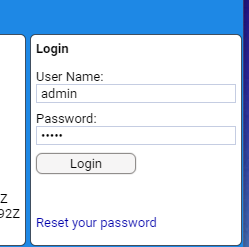
Press the button. As this is the account’s first login, you are told the password must be changed before you can continue.
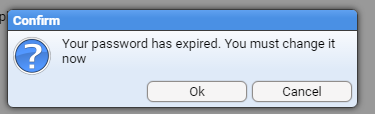
Press
, then enter the old password admin and a new password with confirmation.
The new password must meet the configured password policy.
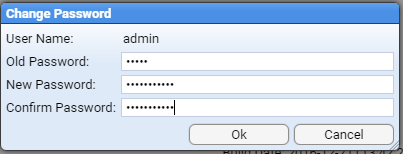
Press again to see the confirmation that the password has changed.
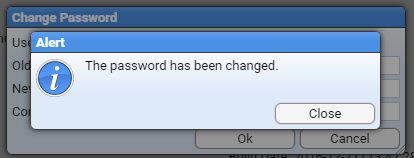
On pressing
you are logged in as the admin user, and are presented with the Main Menu, and the Explorer and Welcome panels.
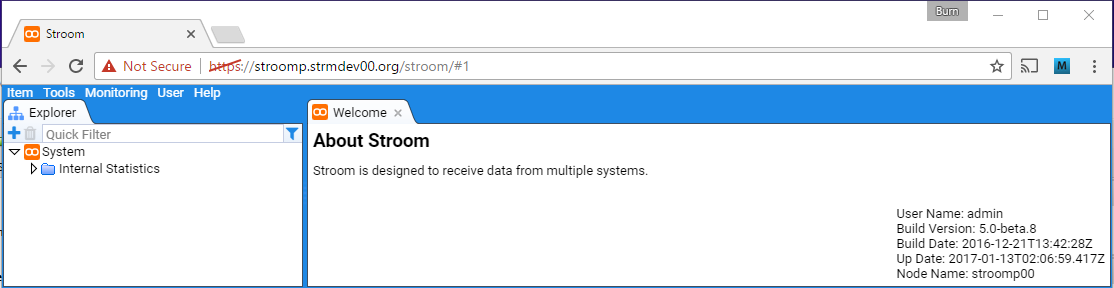
You will not be asked to change this password again until it reaches the age set by stroom.security.identity.passwordPolicy.mandatoryPasswordChangeDuration.
Certificate Login
Load your personal PKI certificate into your browser, selecting it if you hold more than one, then go to the Stroom UI URL. Provided you have an account, you are logged in without being asked for a password.
See Also
2 - Create a user
Assumptions
The following assumptions are used in this document.
- An account with the
AdministratorApplication Permission is currently logged in. - We will be adding the user
burn - We will make this user an
Administrator
Add a New User
To add a new user, move your cursor to the Tools item of the Main Menu and select to bring up the Tools sub-menu.
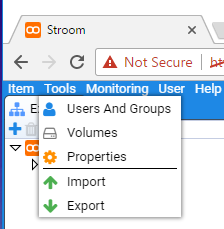
Then move down and select the Users and Groups sub-item to be presented with the Users and Groups configuration window as seen below.

To add the user, move the cursor to the New icon in the top left and
select it.
On selection you will be prompted for a user name.
In our case we will enter the user burn.
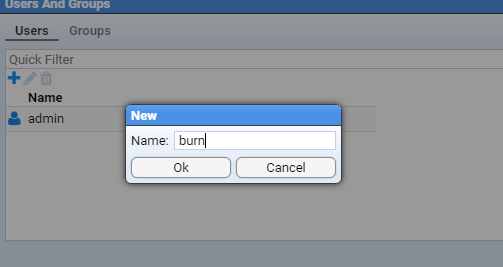
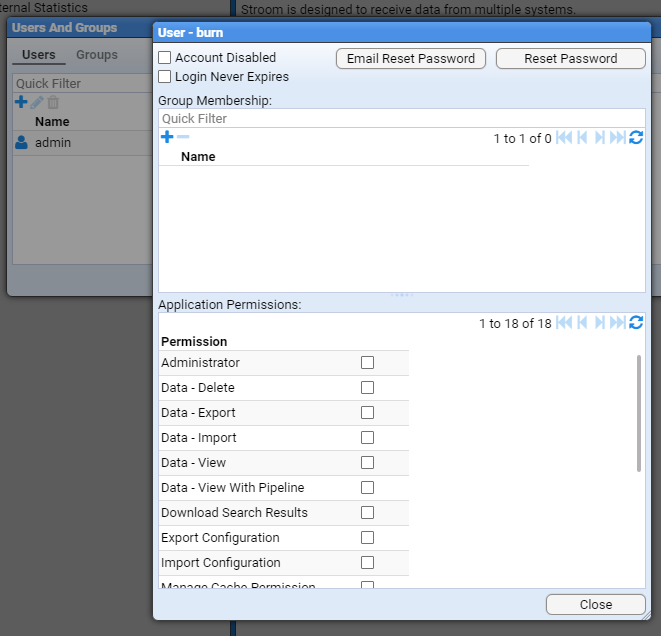
and on pressing will be presented with the User configuration window.
Set the User Application Permissions
See Permissions for an explanation of the various Application Permissions a user can have.
Assign an Administrator Permission
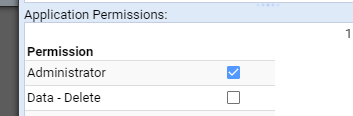
As we want the user to be an administrator, select the Administrator Permission check-box
Set User’s Password
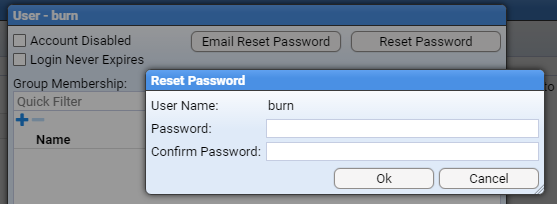
We need to set burn's password (which he will need to reset on first login).
So, select the
button to gain the Reset Password window
After setting a password and pressing the button we get the informational Alert window as per

and on close of the Alert we are presented again with the User configuration window.
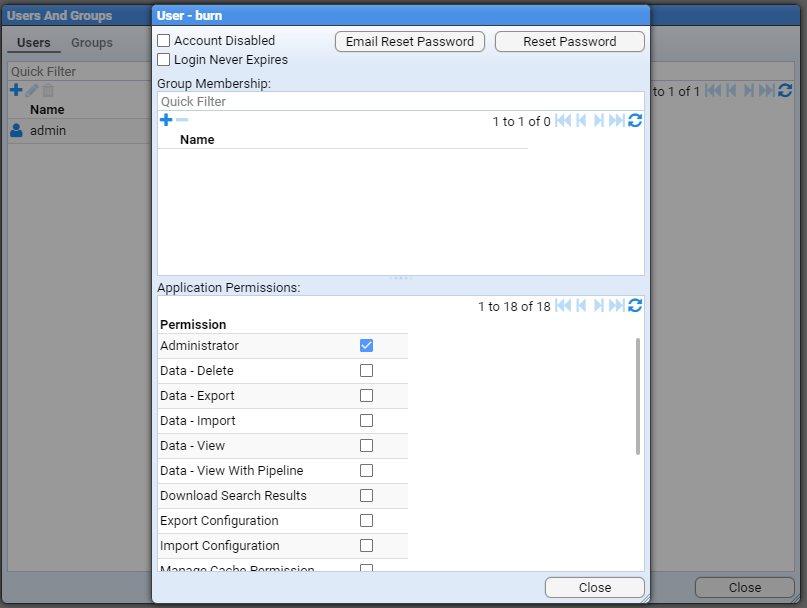
We should close this window by pressing the
button to be presented with the Users and Groups window with the new user burn added.

At this point, one can close the Users and Groups configuration window by pressing the
button at the bottom right of the window.
3 - Logout
Assumptions
The following assumptions are used in this document.
- the user
adminis currently logged in
Log Out of UI
To log out of the UI, select the User item of the Main Menu and to bring up the User sub-menu.
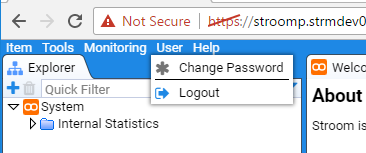
and select the Logout sub-item and confirm you wish to log out by selecting the
button.
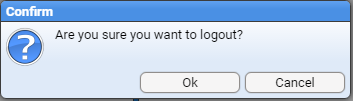
This will return you to the Login page.